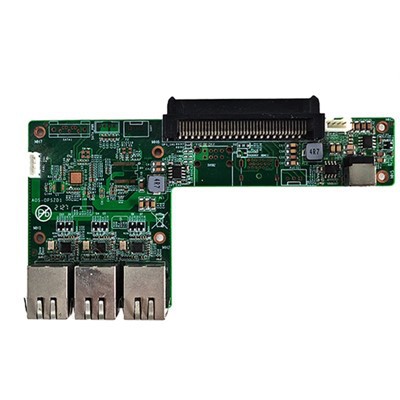
Hey there! As a supplier of Atom Z8350 Android Windows OPS computers, I often get asked about how to access the BIOS settings of these machines. It's a pretty common question, and I'm here to break it down for you in a simple, easy - to - understand way.
First off, let's talk a bit about what the BIOS is. BIOS, which stands for Basic Input/Output System, is like the control center of your computer. It's responsible for initializing all the hardware components when you turn on your computer and provides a set of basic instructions for them to communicate with each other. Accessing the BIOS settings allows you to make changes to things like boot order, hardware configuration, and system security.
Now, for the Atom Z8350 Android Windows OPS computer, the process of accessing the BIOS can vary depending on the manufacturer and the specific model. But generally, there are a few common methods that you can try.


Method 1: Using a Specific Key During Boot - up
Most computers allow you to access the BIOS by pressing a specific key right when you start the machine. For many Atom Z8350 - based OPS computers, the key could be one of the following:
- F2: This is a very common key used to enter the BIOS. When you power on your computer, keep an eye on the screen. You might see a message like "Press F2 to enter Setup" or something similar. As soon as you see that, quickly press the F2 key.
- Del: Another frequently used key. Similar to the F2 key, you need to press the Del key right at the start of the boot - up process. Sometimes, you may need to press it repeatedly until the BIOS screen appears.
Here's a tip: It's a good idea to press the key a few times in quick succession when you start the computer. This ensures that your press is registered, especially if the system boots up really fast.
Method 2: Through the Windows Operating System
If you're already running Windows on your Atom Z8350 OPS computer, there's also a way to access the BIOS from within the operating system.
- First, click on the "Start" button.
- Then, click on the power icon.
- While holding down the "Shift" key on your keyboard, click on "Restart".
- Your computer will restart into a special menu. From there, select "Troubleshoot".
- Next, choose "Advanced options".
- Finally, click on "UEFI Firmware Settings". This will take you directly to the BIOS settings.
Method 3: Using the Android System
If your Atom Z8350 computer is running Android, the process is a bit different.
- First, make sure your device is rooted. Rooting gives you administrative privileges on the Android system.
- Once rooted, you can use a file manager app to navigate to the system partition.
- Look for a file related to the BIOS settings. This might be a hidden file, so you may need to enable the option to show hidden files in your file manager.
- Open the file with a text editor. Be very careful when making any changes here, as incorrect modifications can cause serious problems with your device.
Now, I know that accessing the BIOS can seem a bit intimidating, especially if you're not very tech - savvy. But don't worry! If you run into any issues, you can always reach out to us. We're a professional supplier of Atom Z8350 Android Windows OPS computers, and we have a team of experts who can assist you.
By the way, if you're interested in other types of OPS computers, we also offer some great options. Check out our Intel H310 chipset LED OPS PC, which is perfect for LED conference machines. And for those who need more power, our Intel® H610 PC Core I3 - 12100 OPS PC Supports Multiple Unique Graphics Cards is a great choice. Also, if you're looking for an adapter board, our LED All - in - one Computer Adapter Small Board 4K HD Picture Quality Adapter Board offers excellent 4K picture quality.
If you're in the market for an OPS computer or need to replace an old one, we're here to help. Our Atom Z8350 Android Windows OPS computers are known for their reliability, performance, and affordability. Whether you're using it for home, office, or educational purposes, these computers can meet your needs.
We understand that every customer has different requirements. That's why we offer customization options. You can choose the storage capacity, memory size, and other features according to your specific needs.
So, if you're interested in purchasing our Atom Z8350 Android Windows OPS computers or any of our other products, don't hesitate to contact us. We're more than happy to have a detailed discussion with you about your requirements and provide you with the best solutions.
In conclusion, accessing the BIOS settings of an Atom Z8350 Android Windows OPS computer is not as difficult as it may seem. With a little patience and following the steps I've outlined above, you should be able to do it without much trouble. And remember, we're here to support you every step of the way.
References
- General knowledge of computer BIOS systems
- Manufacturer's documentation for Atom Z8350 Android Windows OPS computers