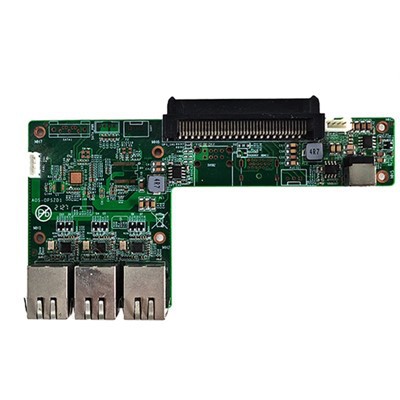
Adjusting the screen brightness on an RK3399PRO Android OPS Computer is a fundamental yet crucial task that can significantly enhance user experience. As a supplier of RK3399PRO Android OPS Computers, I understand the importance of providing clear guidance on this process. In this blog post, I will walk you through the steps to adjust the screen brightness on your RK3399PRO Android OPS Computer, along with some additional tips and considerations.
Why Adjust Screen Brightness?
Before we dive into the adjustment process, let's briefly discuss why adjusting screen brightness is important. Proper screen brightness not only improves visual comfort but also helps to reduce eye strain, especially during long periods of use. Additionally, adjusting the brightness can save battery life on devices that are not constantly connected to a power source. By finding the right balance, you can optimize your viewing experience and extend the lifespan of your device.
Step-by-Step Guide to Adjust Screen Brightness
Adjusting the screen brightness on an RK3399PRO Android OPS Computer is a straightforward process. Here are the steps to follow:
Step 1: Access the Quick Settings Panel
The quickest way to adjust the screen brightness is through the Quick Settings panel. To access this panel, swipe down from the top of the screen. On the RK3399PRO Android OPS Computer, you will see a row of icons representing various settings and functions.
Step 2: Locate the Brightness Slider
Among the icons in the Quick Settings panel, you will find a brightness slider. This slider allows you to adjust the screen brightness by dragging it left or right. Dragging the slider to the left will decrease the brightness, while dragging it to the right will increase it.
Step 3: Adjust the Brightness
Once you have located the brightness slider, simply drag it to your desired brightness level. You can make small adjustments by moving the slider slowly or larger adjustments by dragging it more quickly. As you adjust the slider, you will see the screen brightness change in real-time.


Step 4: Enable Automatic Brightness (Optional)
If you prefer not to manually adjust the screen brightness, you can enable the automatic brightness feature. To do this, tap on the "Auto" icon next to the brightness slider. When automatic brightness is enabled, the device will adjust the screen brightness based on the ambient light conditions. This can be particularly useful when you are moving between different lighting environments.
Additional Tips and Considerations
Here are some additional tips and considerations to keep in mind when adjusting the screen brightness on your RK3399PRO Android OPS Computer:
- Calibrate the Screen: If you find that the screen brightness is not accurate or consistent, you may need to calibrate the screen. To do this, go to the device's settings and look for the "Display" or "Screen" section. From there, you should be able to find an option to calibrate the screen brightness.
- Use Night Mode: If you are using your device in low-light conditions, such as at night, you may want to enable the night mode feature. Night mode reduces the amount of blue light emitted by the screen, which can help to reduce eye strain and improve sleep quality.
- Adjust Brightness for Different Applications: Some applications may require different screen brightness levels for optimal viewing. For example, games and videos may look better with higher brightness, while reading e-books or working on documents may be more comfortable with lower brightness. You can adjust the screen brightness for individual applications by going to the application's settings and looking for the brightness option.
Related Products
As a supplier of RK3399PRO Android OPS Computers, we also offer a range of related products that may be of interest to you. Here are some examples:
- Intel J6412 Processor MINI Computer 2COM Port 6USB Mini Computer: This mini computer is powered by the Intel J6412 processor and features 2 COM ports and 6 USB ports. It is suitable for a variety of applications, including industrial control, digital signage, and kiosks.
- RK3399A Touch Panel Android Motherboard: This motherboard is based on the RK3399A chipset and features a touch panel interface. It is designed for use in Android-based devices, such as tablets, kiosks, and digital signage.
- ARM Chip Industrial Iot Gateway Internet Of Things Gateway Computer Embedded Computer: This industrial IoT gateway is powered by an ARM chip and features a range of connectivity options, including Ethernet, Wi-Fi, and Bluetooth. It is suitable for use in industrial automation, smart cities, and other IoT applications.
Conclusion
Adjusting the screen brightness on an RK3399PRO Android OPS Computer is a simple yet important task that can significantly enhance your user experience. By following the steps outlined in this blog post, you should be able to easily adjust the screen brightness to your desired level. Additionally, by considering the additional tips and related products mentioned, you can further optimize your device's performance and functionality.
If you have any questions or would like to learn more about our RK3399PRO Android OPS Computers or related products, please feel free to contact us for procurement and negotiation. We look forward to hearing from you!
References
- Android Developer Documentation
- RK3399PRO Android OPS Computer User Manual