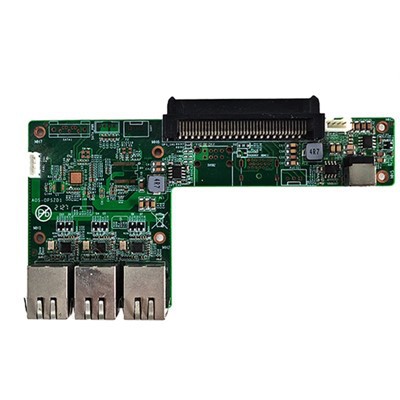
Hey there! As a supplier of Atom Z8350 Android Windows OPS Computers, I often get asked about how to change the language settings on these devices. It's a pretty common issue, especially for those who are new to using Windows on an Atom Z8350-powered machine. So, I thought I'd put together this blog post to walk you through the process step by step.


First off, let me give you a bit of background on the Atom Z8350. It's a great little processor that's commonly used in small form-factor computers, like OPS (Open Pluggable Specification) units. These computers are often used in digital signage, kiosks, and other industrial applications. They're known for their low power consumption, compact size, and decent performance for their class.
Now, let's get into the nitty-gritty of changing the language settings on an Atom Z8350 Windows OPS computer. The process is actually quite straightforward, but there are a few things you need to keep in mind.
Step 1: Access the Settings Menu
The first thing you need to do is access the Windows Settings menu. You can do this by clicking on the Start button in the bottom-left corner of your screen and then selecting the gear icon, which represents the Settings app.
Step 2: Select "Time & Language"
Once you're in the Settings app, scroll down and click on the "Time & Language" option. This will take you to a new page where you can manage various language and region settings.
Step 3: Add a New Language
On the left side of the "Time & Language" page, click on "Language." Here, you'll see a list of languages that are currently installed on your computer. To add a new language, click on the "Add a language" button.
A search box will appear, allowing you to type in the name of the language you want to add. Once you've found the language you're looking for, select it and click "Next." Windows will then download and install the language pack for that particular language.
Step 4: Set the New Language as the Default
After the language pack has been installed, you'll see the new language added to the list of installed languages. To set it as the default language, click on the three dots next to the language and select "Set as default."
Step 5: Configure Language-Specific Settings
Once you've set the new language as the default, you may want to configure some language-specific settings. For example, you can change the date and time format, the currency symbol, and other regional settings. To do this, click on the language in the list of installed languages and then click on "Options."
Here, you'll be able to customize various settings for that particular language. You can also download additional language features, such as handwriting recognition and speech recognition, if you need them.
Step 6: Restart Your Computer
After you've made all the necessary changes, it's a good idea to restart your computer to make sure all the settings take effect. Once your computer has restarted, you should see the new language applied throughout the operating system.
Troubleshooting Tips
Sometimes, you may encounter some issues when changing the language settings on your Atom Z8350 Windows OPS computer. Here are a few troubleshooting tips to help you out:
- Check Your Internet Connection: Downloading language packs requires an internet connection. Make sure your computer is connected to the internet and that the connection is stable.
- Update Windows: Make sure your Windows operating system is up to date. Sometimes, language pack installation issues can be resolved by installing the latest Windows updates.
- Run the Language Pack Troubleshooter: Windows has a built-in troubleshooter that can help you diagnose and fix language pack installation issues. To run the troubleshooter, go to the Settings app, click on "Update & Security," and then select "Troubleshoot." Scroll down and click on "Language packs" and then click "Run the troubleshooter."
Other Considerations
When changing the language settings on your Atom Z8350 Windows OPS computer, there are a few other things you should keep in mind:
- Software Compatibility: Some software applications may not support all languages. Make sure the software you use is compatible with the language you want to set as the default.
- Keyboard Layout: Changing the language may also change the keyboard layout. Make sure you're familiar with the new keyboard layout or configure it to your liking.
- Regional Settings: In addition to changing the language, you may also want to adjust the regional settings to match your location. This can affect things like the date and time format, the currency symbol, and other regional preferences.
Our Product Offerings
As a supplier of Atom Z8350 Android Windows OPS Computers, we offer a wide range of products to meet your needs. Whether you're looking for a compact and powerful OPS computer for digital signage or a high-performance unit for industrial applications, we've got you covered.
Here are some of our popular products:
- Intel 4-5 Generation CPU 3.5-inch Industrial Motherboard: This motherboard is designed for industrial applications and features an Intel 4-5 generation CPU for reliable performance.
- UHD OPS Computer for Meeting Board: Ideal for meeting rooms and conference halls, this UHD OPS computer delivers high-quality visuals and smooth performance.
- SOH310B Whiskylake Touch Display OPS-C Computer: With its Whiskylake processor and touch display support, this OPS-C computer is perfect for interactive kiosks and digital signage.
Contact Us for Purchase
If you're interested in purchasing an Atom Z8350 Android Windows OPS Computer or any of our other products, please feel free to contact us for more information. We'd be happy to discuss your requirements and help you find the right solution for your needs.
References
- Microsoft Support: Changing the display language in Windows
- Intel Atom Z8350 Product Specifications