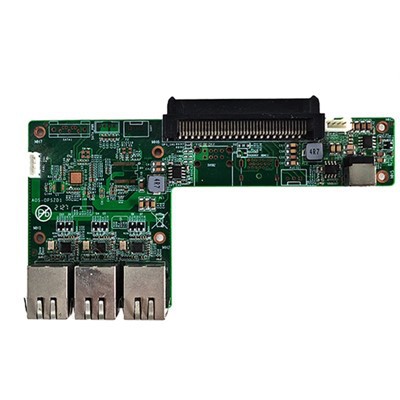
As a supplier of 4K OPS (Open Pluggable Specification) computers for touch panels, I often encounter customers who are eager to understand the hardware information of these devices. Checking the hardware information is crucial for several reasons, such as ensuring compatibility with existing systems, assessing performance capabilities, and troubleshooting potential issues. In this blog post, I'll guide you through the process of checking the hardware information of a 4K OPS computer for touch panels.
Understanding the Basics of 4K OPS Computers for Touch Panels
Before diving into the hardware - checking process, it's essential to understand what a 4K OPS computer for touch panels is. These devices are designed to provide high - definition visual output (4K resolution) and support touch - screen functionality. They are commonly used in digital signage, interactive kiosks, educational displays, and corporate meeting rooms.
The OPS standard allows for easy integration of the computer into a display. It's a plug - and - play solution that simplifies the installation process and enables seamless interaction between the computer and the touch panel.
Why Check the Hardware Information?
- Compatibility: Different touch panels may have specific requirements in terms of graphics processing, input/output interfaces, and power consumption. By checking the hardware information, you can ensure that the 4K OPS computer is compatible with your touch panel.
- Performance Evaluation: Understanding the hardware components, such as the CPU, GPU, and RAM, helps you assess the computer's performance capabilities. This is important for applications that require high - speed processing, like real - time video playback or complex interactive software.
- Troubleshooting: When facing issues such as slow performance, display problems, or touch - input errors, checking the hardware information can help identify potential causes. For example, outdated drivers or insufficient memory can often be the root of such problems.
Methods to Check Hardware Information
1. Using System Tools
Most operating systems come with built - in tools that can provide detailed hardware information.
- Windows:
- Device Manager: You can access the Device Manager by right - clicking on the Start button and selecting "Device Manager." In the Device Manager, you can view information about various hardware components, including the processor, graphics card, storage devices, and input devices. For example, under "Display adapters," you can find details about the graphics card, such as its model and driver version.
- System Information: Press the Windows key + R, type "msinfo32," and press Enter. The System Information tool provides comprehensive details about the computer's hardware and software configuration, including the BIOS version, installed memory (RAM), and system type.
- Linux:
- lshw: This is a powerful command - line tool that provides detailed information about the hardware. You can install it using the package manager of your Linux distribution (e.g.,
sudo apt - get install lshwfor Ubuntu). After installation, runsudo lshwto get a detailed report of all hardware components. - lspci: This command lists all the PCI (Peripheral Component Interconnect) devices in the system, including the graphics card, network card, and sound card. For example, running
lspci | grep VGAwill show information about the video card.
- lshw: This is a powerful command - line tool that provides detailed information about the hardware. You can install it using the package manager of your Linux distribution (e.g.,
- macOS:
- About This Mac: Click on the Apple menu in the top - left corner of the screen and select "About This Mac." This provides basic information about the computer, such as the model, processor, and memory.
- System Information: Click on "System Report" in the "About This Mac" window. Here, you can find detailed information about various hardware components, including the graphics card, storage devices, and USB devices.
2. Checking the BIOS/UEFI
The BIOS (Basic Input/Output System) or UEFI (Unified Extensible Firmware Interface) contains important information about the computer's hardware configuration. To access the BIOS/UEFI, restart the computer and press a specific key during the boot process. The key varies depending on the computer manufacturer, but common keys include Del, F2, F10, or Esc.
In the BIOS/UEFI settings, you can find information such as the CPU model, memory size and speed, and the status of various hardware components. It's important to note that making changes in the BIOS/UEFI should be done with caution, as incorrect settings can cause the computer to malfunction.
3. Using Third - Party Software
There are also many third - party software tools available that can provide detailed hardware information.
- CPU - Z: This is a popular tool for checking CPU, motherboard, and memory information. It provides detailed information about the CPU's clock speed, core count, and cache size. You can also view information about the motherboard's chipset and memory timings.
- GPU - Z: As the name suggests, this tool is specifically designed to provide information about the graphics card. It shows details such as the GPU model, memory size, clock speeds, and temperature.
- HWiNFO: This is a comprehensive hardware information and monitoring tool. It can provide detailed information about all hardware components, including the CPU, GPU, memory, storage devices, and power supply. It also offers real - time monitoring of hardware temperatures, fan speeds, and power consumption.
Key Hardware Components to Check
1. CPU (Central Processing Unit)
The CPU is the brain of the computer, responsible for processing all instructions. When checking the CPU information, look for details such as the model, clock speed, core count, and cache size. A higher clock speed and more cores generally mean better performance. For example, our [Intel 4 - 5 Generation CPU 3.5 - inch Industrial Motherboard](/ops - computer/intel - 4 - 5 - generation - cpu - 3.5 - inch - industrial.html) offers reliable processing power for various applications.
2. GPU (Graphics Processing Unit)
The GPU is responsible for rendering graphics and videos. For a 4K OPS computer for touch panels, a powerful GPU is essential to ensure smooth 4K video playback and responsive touch - screen interaction. Check the GPU model, memory size, and clock speeds. Our [Transfer Panel Addtive OPS Computer](/ops - computer/transfer - panel - addtive - ops - computer.html) is equipped with high - performance GPUs to meet the demands of 4K content.
3. Memory (RAM)
Random Access Memory (RAM) is used to store data that the computer is currently using. Insufficient RAM can lead to slow performance, especially when running multiple applications or working with large files. Check the amount of installed RAM and its speed. Most modern 4K OPS computers should have at least 4GB or more of RAM for optimal performance.
4. Storage
The storage device is where all your data, including the operating system, applications, and files, are stored. There are two main types of storage devices: hard disk drives (HDD) and solid - state drives (SSD). SSDs are generally faster and more reliable than HDDs. Check the type, capacity, and speed of the storage device.


5. Input/Output Interfaces
Check the available input/output interfaces, such as USB ports, HDMI ports, and audio jacks. These interfaces are used to connect external devices, such as keyboards, mice, printers, and external displays. Make sure the computer has the necessary interfaces for your specific needs.
Contact Us for More Information
If you are interested in our 4K OPS computers for touch panels or need further assistance in checking the hardware information, we are here to help. Whether you are a business looking to upgrade your digital signage or an educational institution in need of interactive displays, our products are designed to meet your requirements. Contact us to start a procurement discussion and find the perfect solution for your needs.
References
- Microsoft. (n.d.). Device Manager in Windows. Retrieved from Microsoft official website.
- Linux Documentation Project. (n.d.). Using lshw and lspci in Linux. Retrieved from Linux Documentation Project website.
- Apple Inc. (n.d.). About System Information on Mac. Retrieved from Apple official website.
- CPU - Z official website. (n.d.). Product information. Retrieved from CPU - Z official website.
- GPU - Z official website. (n.d.). Product information. Retrieved from GPU - Z official website.
- HWiNFO official website. (n.d.). Product information. Retrieved from HWiNFO official website.