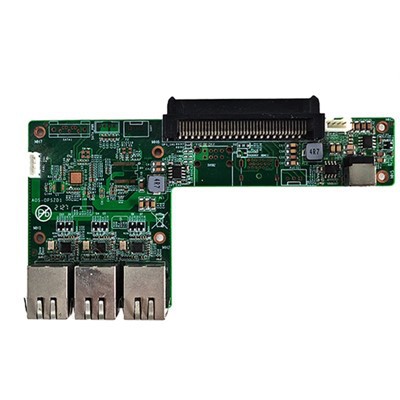
As a supplier of RK3399PRO Android OPS Computers, I often receive inquiries from customers about how to clean the cache on these devices. In this blog post, I'll provide a detailed guide on this topic, sharing both the reasons for cache cleaning and the step - by - step process.
Why Clean the Cache on RK3399PRO Android OPS Computer?
Before delving into the cleaning process, it's essential to understand why cache cleaning is necessary. The cache on an Android device, including the RK3399PRO Android OPS Computer, serves as a temporary storage area for data. Applications use the cache to store frequently accessed information, such as images, scripts, and temporary files. This helps in speeding up the app's performance as it doesn't have to fetch the same data repeatedly from the server.
However, over time, the cache can accumulate a large amount of data, which can lead to several issues. Firstly, it takes up valuable storage space on your device. With limited storage capacity, a bloated cache can cause your system to slow down and may even lead to errors when there isn't enough space for new data. Secondly, an over - sized cache can sometimes cause applications to behave erratically, leading to crashes or unresponsiveness. Therefore, regularly cleaning the cache can improve the overall performance of your RK3399PRO Android OPS Computer, free up storage space, and ensure a smooth user experience.
Methods to Clean the Cache
Method 1: Cleaning Cache via Settings
This is the most straightforward way to clean the cache on your RK3399PRO Android OPS Computer.
- Access Settings: On your device's home screen, find and tap on the "Settings" icon. It usually looks like a gear.
- Navigate to Storage: Inside the Settings menu, scroll down and look for the "Storage" option. This may be labeled differently depending on the Android version installed on your device, but it is generally under a section related to device management.
- Select Cache Data: Once you're in the Storage menu, you'll see an option for "Cached data". Tap on it. A confirmation prompt will appear, warning you that this action will delete all the cached data on your device.
- Confirm Deletion: After reviewing the prompt, tap "OK" to proceed with the cache deletion. The system will then start the process of clearing the cache, which may take a few seconds to a minute depending on the amount of cached data.
Method 2: Cleaning App - Specific Cache
If you only want to clean the cache of a particular application, you can do so by following these steps:


- Open Settings and Apps: Go to the "Settings" app on your RK3399PRO Android OPS Computer. Then, find and tap on the "Apps" or "Applications" option.
- Select the App: In the list of installed applications, scroll through and select the app whose cache you want to clean.
- Clear Cache: On the app's information page, you'll find an option labeled "Clear cache". Tap on it, and the cache for that specific app will be deleted. This method is useful if you suspect that a particular app's cache is causing problems or if you want to save storage space used by a specific app.
Method 3: Using Third - Party Cleaning Apps
There are numerous third - party cleaning apps available on the Google Play Store that can help you clean the cache on your RK3399PRO Android OPS Computer. These apps often provide additional features such as junk file removal, memory optimization, and app uninstallation management.
- Install a Cleaning App: Open the Google Play Store on your device. Search for popular cleaning apps like CCleaner or Clean Master. Once you've found the app you want, tap on the "Install" button and wait for the installation to complete.
- Run the App: After installation, open the cleaning app. It will usually scan your device automatically to detect cached data, junk files, and other unnecessary data.
- Clean the Cache: Once the scan is complete, the app will display a list of data that can be cleaned. Select the cache option and tap the "Clean" or "Delete" button to remove the cached data.
Additional Tips for Maintaining a Clean Cache
- Regular Cleaning Schedule: Set a regular schedule for cache cleaning, such as once a week or once a month. This can help prevent the cache from becoming too large and causing issues.
- Monitor Storage Usage: Keep an eye on your device's storage usage. You can do this by checking the Storage section in the Settings app. If you notice that the cache is taking up a significant amount of space, it's a good time to clean it.
- Update Your Apps: Sometimes, app updates can optimize the way apps use cache. Make sure to keep your applications up - to - date to ensure efficient cache management.
Other Related Products in Our Catalog
As a supplier, we offer a wide range of high - quality OPS computers. In addition to the RK3399PRO Android OPS Computer, we also have the 6GEN Core Skylake - U Fanless Aluminum Chassis Mini Computer, which provides powerful performance in a compact and fanless design. Another great option is the IntelJ1900//J2900 CPU Small Computer 6 USB MINI Computers, suitable for various small - scale computing needs. And for those interested in AI computing power, our AI Computing Power ARM Chip OPS Pluggable Android Computer ARM RK3568 is a cutting - edge product that combines advanced ARM technology with Android capabilities.
Contact Us for Purchase and Consultation
If you're interested in purchasing our RK3399PRO Android OPS Computers or any of our other products, or if you have further questions about cache cleaning or device maintenance, please feel free to contact us. Our team of experts is ready to provide you with detailed product information, technical support, and assist you in making the right purchase decision. We're committed to offering high - quality products and excellent customer service.
References
- Android Developers Documentation
- Google Play Store Help Center
- General Android Device Management Guides