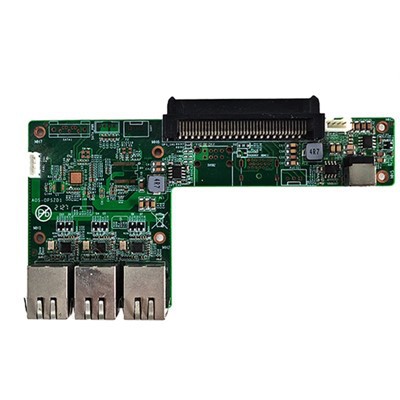
Hey there! As a supplier of the RK3288 Android OPS Computer, I often get asked about how to connect to a VPN on this device. So, I thought I'd put together this blog post to walk you through the process step by step.
First off, let's talk about why you might want to connect to a VPN on your RK3288 Android OPS Computer. A VPN, or Virtual Private Network, encrypts your internet connection and routes it through a server in a different location. This can be super useful for a few reasons. For one, it can help protect your privacy and security online. When you're connected to a VPN, your internet service provider (ISP) and other third parties can't see what you're doing online. It also allows you to access content that might be blocked in your area. For example, if you're traveling abroad and want to watch your favorite shows on a streaming service that's only available in your home country, a VPN can help you bypass those restrictions.
Now, let's get into the nitty - gritty of how to connect to a VPN on your RK3288 Android OPS Computer.
Step 1: Choose a VPN Service
There are tons of VPN services out there, each with its own features, pricing, and security levels. Some popular ones include NordVPN, ExpressVPN, and Surfshark. When choosing a VPN, you'll want to consider things like the number of servers they have, the speed of their connections, and their privacy policy. You can do some research online to read reviews and compare different VPN services to find the one that's right for you.
Step 2: Download and Install the VPN App
Once you've chosen a VPN service, head over to their official website. Most VPN providers have an Android app that you can download directly to your RK3288 Android OPS Computer. On your device, open the web browser and go to the VPN service's website. Look for the download link for the Android app. Once you've found it, click on the link to start the download.
After the download is complete, locate the APK file (this is the file format for Android apps). You may need to enable "Unknown sources" in your device's settings to install apps from outside the Google Play Store. To do this, go to "Settings" > "Security" and toggle the "Unknown sources" option on. Then, tap on the APK file to start the installation process. Follow the on - screen instructions to complete the installation.
Step 3: Set Up the VPN Account
Open the VPN app you just installed on your RK3288 Android OPS Computer. You'll usually be prompted to log in or create an account. If you're a new user, click on the "Sign up" or "Create account" option and follow the steps to set up your account. You'll need to provide an email address and create a password. Some VPN services may also offer a free trial period, so you can test out their service before committing to a paid subscription.
Step 4: Connect to a VPN Server
Once you're logged in to the VPN app, you'll see a list of available servers. These servers are located in different countries and regions around the world. You can choose a server based on your needs. For example, if you want to access content from the United States, select a server located in the US.
To connect to a server, simply tap on the server you want to use. The app will then establish a connection to the server. This may take a few seconds. Once the connection is established, you'll see a confirmation message in the app, and your device will now be connected to the VPN.
Step 5: Verify the Connection
After connecting to the VPN, it's a good idea to verify that your connection is working properly. You can do this by going to a website like WhatIsMyIP.com. This website will show you your current IP address. If your VPN is working correctly, the IP address shown on the website should be the IP address of the VPN server you connected to, not your actual IP address.
That's pretty much it! Connecting to a VPN on your RK3288 Android OPS Computer is a relatively straightforward process. However, if you run into any issues along the way, most VPN services have customer support teams that can help you troubleshoot.
As a supplier of the RK3288 Android OPS Computer, I also want to mention some of the other great products we offer. We have the HM86 Discrete Graphics Electronic Whiteboard OPS Computer, which is perfect for educational and business settings. It offers high - quality graphics and smooth performance for all your presentation and collaboration needs.

We also have the Intel 4 - 5 Generation CPU 3.5 - inch Industrial Motherboard. This motherboard is designed for industrial applications, providing reliable performance and durability in harsh environments.
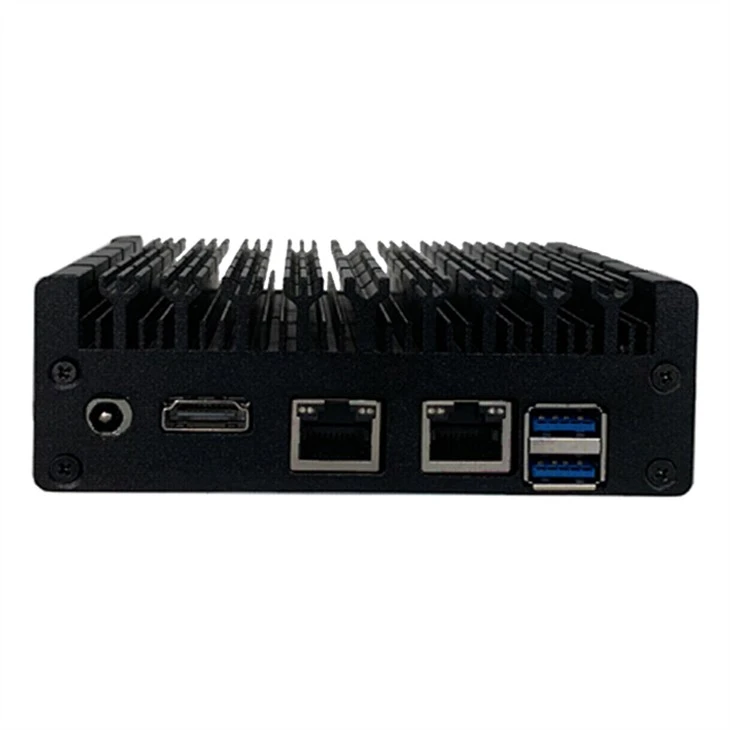
And if you're looking for a compact and efficient computer, check out our 6GEN Core Skylake - U Fanless Aluminum Chassis Mini Computer. It's a great option for those who need a powerful computer in a small form factor.
If you're interested in any of our products, including the RK3288 Android OPS Computer, don't hesitate to reach out for a purchase negotiation. We're always happy to work with you to find the best solutions for your needs.
References
- General knowledge about VPNs and Android device setup.
- Information about the RK3288 Android OPS Computer and related products from internal product knowledge.