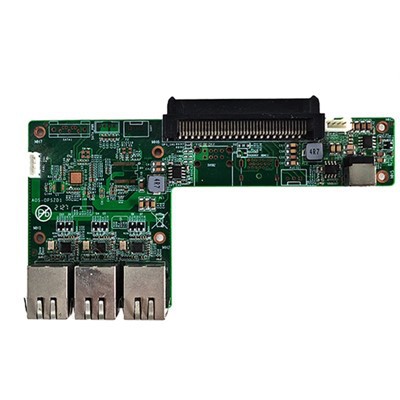
In the realm of industrial computing, the RK3399PRO Android OPS (Open Pluggable Specification) Computer has emerged as a powerful and versatile solution. As a supplier of the RK3399PRO Android OPS Computer, I'm frequently asked about enabling developer options on this device. This feature is crucial for those who wish to customize, test, and optimize the device to suit specific industrial or development needs. In this blog, I'll guide you through the process of enabling developer options on the RK3399PRO Android OPS Computer.
Understanding the RK3399PRO Android OPS Computer
Before delving into the process of enabling developer options, let's briefly understand what the RK3399PRO Android OPS Computer is. It's a high - performance computer designed to meet the demands of various industrial applications. Powered by the RK3399PRO processor, it offers excellent computing power, support for high - resolution displays, and a wide range of connectivity options, making it suitable for use in areas such as industrial IoT, digital signage, and meeting boards.


If you're interested in related products, you can explore our offerings like the ARM Chip Industrial Iot Gateway Internet Of Things Gateway Computer Embedded Computer and RK3399A Touch Panel Android Motherboard or the UHD OPS Computer for Meeting Board.
Prerequisites
Before you begin enabling developer options, ensure that your RK3399PRO Android OPS Computer meets the following requirements:
- The device is running the Android operating system. This is typically pre - installed on the RK3399PRO Android OPS Computer, but it's important to confirm.
- You have administrative access to the device. Enabling developer options may require you to enter your device administrator password if you've set one up.
- The device has sufficient power. It's recommended to keep the device plugged in during the process to avoid any interruptions due to low battery.
Step - by - Step Guide to Enabling Developer Options
- Navigate to the Settings Menu
- On your RK3399PRO Android OPS Computer, locate and tap on the "Settings" app. This is usually represented by a gear icon and can be found on the home screen or in the app drawer.
- Once you open the Settings app, you'll see a list of various system settings and options.
- Find the About Phone Section
- Scroll down through the Settings menu until you find the "About Phone" or "About Device" option. The exact name may vary slightly depending on the Android version installed on your device.
- Tap on the "About Phone" section. Here, you'll find information about your device, such as the device model, Android version, and build number.
- Locate the Build Number
- Inside the "About Phone" section, look for the "Build Number" or "Software Information". This is a unique identifier assigned to the software version installed on your device.
- Enable Developer Options
- To enable developer options, tap on the "Build Number" several times. On most Android devices, you need to tap it 7 times. After each tap, you may see a message indicating how many more taps are required.
- Once you've tapped the build number 7 times, you'll receive a notification that says "You are now a developer!". This indicates that the developer options have been successfully enabled.
- Access Developer Options
- Now, go back to the main Settings menu. You'll notice that a new option called "Developer options" has appeared.
- Tap on "Developer options" to access a wide range of advanced settings and features that are not available in the standard user mode.
Exploring Developer Options
Once you've enabled developer options, here are some of the key features and settings you can explore:
- USB Debugging
- This is one of the most commonly used developer options. By enabling USB debugging, you can connect your RK3399PRO Android OPS Computer to a computer using a USB cable and use tools like Android Debug Bridge (ADB) to transfer files, install apps, and perform other debugging tasks.
- OEM Unlocking
- If you plan to modify the device's bootloader or install custom ROMs, you need to enable OEM unlocking. However, this option should be used with caution as it can void your device's warranty and expose it to security risks if not done correctly.
- App Management
- Developer options also provide advanced app management features. You can view detailed information about installed apps, clear app data and caches, and control app permissions more precisely.
- GPU Rendering
- You can optimize the device's graphics performance by tweaking settings related to GPU rendering. This can be useful for testing and optimizing games and other graphics - intensive applications.
Tips and Precautions
- Use with Caution
- Developer options provide access to advanced settings that can significantly affect the stability and security of your device. Make sure you understand the implications of changing any settings before making adjustments.
- Backup Your Data
- Before making any major changes using developer options, such as unlocking the bootloader or installing custom ROMs, it's essential to backup all your important data. This will prevent data loss in case something goes wrong.
- Stay Informed
- Keep yourself updated with the latest information about Android development and the RK3399PRO Android OPS Computer. This will help you make the most of the developer options and avoid potential issues.
Conclusion
Enabling developer options on the RK3399PRO Android OPS Computer opens up a world of possibilities for customization, testing, and optimization. Whether you're a developer looking to create new applications, an industrial user wanting to tailor the device to specific needs, or just someone curious about exploring advanced features, the process is relatively straightforward.
We, as a leading supplier of the RK3399PRO Android OPS Computer and related products, are committed to providing high - quality devices and support. If you have any questions about enabling developer options or if you're interested in purchasing our products for your projects, we invite you to contact us for procurement and negotiation.
References
- Android Open Source Project Documentation
- RK3399PRO Hardware and Software Manuals