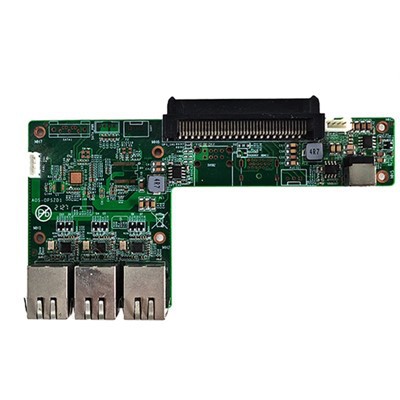
Hey there! As a supplier of Atom Z8350 Android Windows OPS computers, I've had my fair share of customers asking about how to manage startup programs on these nifty machines. It's a common concern, especially for those who want to optimize their device's performance right from the get - go. So, let's dive into it!
First off, why should you care about managing startup programs? Well, when you turn on your Atom Z8350 Android Windows OPS computer, every program that's set to start automatically eats up some of your system's resources. This can lead to slower boot times and overall reduced performance. By managing these startup programs, you can ensure that only the essential ones load when you power on your device, leaving more resources for the tasks you actually want to do.
On the Android Side
If you're using the Android operating system on your Atom Z8350 OPS computer, here's how you can manage startup programs.
Using the Settings App
The easiest way is through the built - in Settings app. Just tap on the "Settings" icon on your home screen or app drawer. Then, look for the "Apps" or "Applications" option. Inside this menu, you'll find a list of all the apps installed on your device. Scroll through the list and tap on the apps you suspect are starting up automatically. Once you're in the app's info page, look for an option like "Auto - start" or "Startup". Toggle this option off for the apps you don't want to start when the device boots up.
Third - Party Task Managers
There are also third - party task managers available on the Google Play Store. These apps can give you more control over which apps start up on boot. Some popular ones include Greenify and SD Maid. After installing one of these apps, open it and look for a section related to startup management. You can usually see a list of apps and their startup status. From there, you can easily disable the ones you don't need.
On the Windows Side
Managing startup programs on the Windows operating system on your Atom Z8350 OPS computer is a bit different but still straightforward.
Using the Task Manager
The Task Manager is your best friend here. You can open it by right - clicking on the taskbar and selecting "Task Manager" or by pressing "Ctrl + Shift + Esc" on your keyboard. Once the Task Manager is open, click on the "Startup" tab. Here, you'll see a list of all the programs that are set to start when Windows boots up. To disable a program from starting, simply right - click on it and select "Disable".
Startup Folder
Another way to manage startup programs is through the Startup folder. To access it, press the "Windows key + R" on your keyboard to open the Run dialog box. Then, type "shell:startup" and press Enter. This will open the Startup folder. Any shortcuts or programs you place in this folder will start when Windows boots up. To remove a program from startup, just delete its shortcut from this folder.


Tips for Optimizing Startup Programs
- Identify Essential Programs: Before you start disabling programs, make sure you know which ones are essential for your device to function properly. For example, antivirus software should usually be left enabled to keep your device secure.
- Regularly Review Startup Programs: Over time, new programs may be installed on your device and added to the startup list. It's a good idea to review your startup programs every few months to keep your device running smoothly.
- Consider the Impact: Some programs may seem like they're not important, but disabling them could cause other issues. For example, disabling a driver - related program could lead to hardware problems. So, always do a bit of research before disabling a program.
Other OPS Computer Options
If you're interested in other types of OPS computers, we also offer some great alternatives. Check out our Intel 4 - 5 Generation CPU 3.5 - inch Industrial Motherboard, which provides high - performance computing for industrial applications. The Ops I5 Pc Module is another powerful option, perfect for users who need more processing power. And if you're looking for a budget - friendly yet reliable option, our Celeron J5005 J4105 J4005 OPS Computer might be just what you need.
Wrapping Up
Managing startup programs on your Atom Z8350 Android Windows OPS computer is an important step in optimizing its performance. Whether you're using Android or Windows, there are simple ways to control which programs start when your device boots up. By following the tips and methods I've shared, you can ensure that your device starts up quickly and runs smoothly.
If you're interested in purchasing an Atom Z8350 Android Windows OPS computer or any of our other products, feel free to reach out for a procurement discussion. We're here to help you find the best solution for your needs.
References
- Android Developer Documentation
- Microsoft Windows Support Documentation