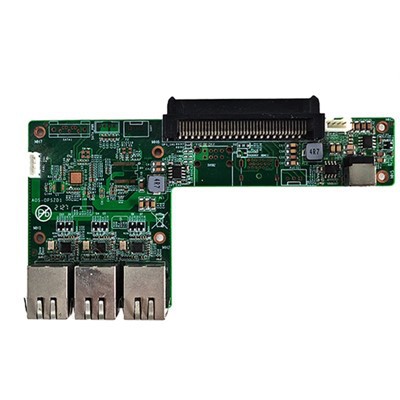
Managing startup programs on the I3 OPS Computer is a crucial task that can significantly enhance the system's performance and user experience. As a trusted I3 OPS Computer supplier, I am here to share some valuable insights and practical tips on how to effectively manage startup programs for optimal functionality.
Understanding the Importance of Startup Program Management
Startup programs are applications that launch automatically when your I3 OPS Computer boots up. While some startup programs are essential for the proper functioning of the system, others may not be necessary and can slow down the boot process and consume system resources. By managing startup programs, you can ensure that only the necessary applications launch at startup, reducing boot time and improving overall system performance.
Identifying Startup Programs
The first step in managing startup programs is to identify which applications are set to launch at startup. On the I3 OPS Computer, you can use the Task Manager to view and manage startup programs. Here's how:
- Press
Ctrl + Shift + Escto open the Task Manager. - Click on the "Startup" tab.
- You will see a list of all the applications that are set to launch at startup. The status column indicates whether an application is enabled or disabled.
Disabling Unnecessary Startup Programs
Once you have identified the startup programs, you can disable the ones that are not necessary. Disabling unnecessary startup programs can significantly reduce the boot time of your I3 OPS Computer. Here's how you can disable a startup program:
- In the Task Manager's "Startup" tab, select the application you want to disable.
- Right - click on the selected application and choose "Disable".
It's important to note that some applications may be required for the proper functioning of the system or other software. For example, antivirus software usually needs to start at startup to provide real - time protection. So, be careful when disabling startup programs and make sure you understand the implications.
Using System Configuration Utility
In addition to the Task Manager, you can also use the System Configuration utility to manage startup programs. Here's how:


- Press the
Windowskey +Rto open the Run dialog box. - Type
msconfigand pressEnter. - In the System Configuration window, click on the "Startup" tab.
- You will see a list of startup programs. Uncheck the boxes next to the programs you want to disable.
- Click "Apply" and then "OK". You may need to restart your computer for the changes to take effect.
Third - Party Software for Startup Program Management
There are also third - party software tools available that can help you manage startup programs more effectively. These tools often provide more advanced features, such as the ability to schedule startup programs, prioritize them, and analyze the impact of each program on system performance. Some popular third - party startup management tools include CCleaner and Autoruns.
Benefits of Managing Startup Programs
Managing startup programs on the I3 OPS Computer offers several benefits:
- Faster Boot Time: By disabling unnecessary startup programs, your computer can boot up more quickly, saving you time and increasing productivity.
- Improved System Performance: With fewer applications running at startup, your system has more resources available for other tasks, resulting in smoother operation.
- Enhanced Security: Some startup programs may pose security risks. By carefully managing startup programs, you can reduce the potential for security vulnerabilities.
Our Product Offerings
As an I3 OPS Computer supplier, we offer a wide range of high - quality products. For example, our Unique Ops Computer Separate Graphics Computer provides a unique solution for users who require separate graphics capabilities. Our Intel 12th Gen CPU OPS offers powerful processing performance, and the SOC Haswell - U OPS JAE 80 PIN OPS - C Computer is a reliable option for various applications.
Contact for Purchase and Consultation
If you are interested in our I3 OPS Computer products or need further assistance with managing startup programs, we encourage you to contact us for a purchase consultation. Our team of experts is ready to provide you with detailed information and support to meet your specific needs.
References
- Microsoft. (n.d.). Task Manager in Windows. Retrieved from Microsoft official documentation.
- Various user guides and manuals for I3 OPS Computer products.