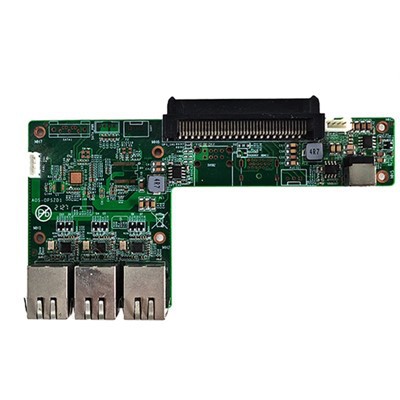
Hey there! As a supplier of OPS Computer For Meeting Touchable TV, I often get asked about how to set up a password for these devices. It's an important step to ensure the security of your meeting data and keep unauthorized users at bay. So, let's dive right in and explore the process.
Why Password Protection Matters
First off, why should you bother setting up a password for your OPS Computer For Meeting Touchable TV? Well, think about all the sensitive information that gets shared during meetings - client details, business strategies, financial data. Without proper security, this information could fall into the wrong hands. A password acts as a first line of defense, preventing unauthorized access and keeping your data safe.
Types of Passwords You Can Set
There are a few different types of passwords you can set for your OPS Computer For Meeting Touchable TV. The most common ones are user passwords and administrator passwords.
- User Passwords: These are for regular users who need access to the system for meetings. You can set different user passwords for different employees or groups, depending on their access needs.
- Administrator Passwords: This is a more powerful password that gives full control over the system. Only authorized administrators should have access to this password, as they can make changes to system settings, install software, and manage user accounts.
Step-by-Step Guide to Setting Up a Password
Now, let's get into the nitty-gritty of setting up a password. The exact steps may vary depending on the model of your OPS Computer For Meeting Touchable TV, but the general process is pretty similar.
Step 1: Access the System Settings
First, you need to access the system settings of your OPS Computer For Meeting Touchable TV. Usually, you can do this by pressing the "Settings" button on the remote control or the touch screen.
Step 2: Navigate to the Password Settings
Once you're in the system settings, look for the "Password" or "Security" section. This is where you'll be able to set up and manage your passwords.
Step 3: Choose the Type of Password
As mentioned earlier, you can choose between user passwords and administrator passwords. Select the type of password you want to set up.
Step 4: Create Your Password
Now it's time to create your password. Make sure it's strong and easy to remember. A strong password should be at least 8 characters long and include a combination of uppercase and lowercase letters, numbers, and symbols. Avoid using common words or phrases that can be easily guessed.
Step 5: Confirm Your Password
After creating your password, you'll need to confirm it. Type it in again to make sure there are no typos.
Step 6: Save Your Settings
Once you've confirmed your password, save your settings. Your password is now set up and ready to use.
Tips for Creating a Strong Password
Here are some tips to help you create a strong password:


- Use a Passphrase: Instead of a single word, use a passphrase. For example, "MyFavoriteMeetingPlace123!" is much stronger than "password".
- Avoid Personal Information: Don't use your name, birthdate, or other personal information in your password. This makes it easier for someone to guess.
- Change Your Password Regularly: It's a good idea to change your password every few months to keep your system secure.
Our Product Range
As a supplier, we offer a wide range of OPS Computer For Meeting Touchable TV products. For example, we have the Intel 4 - 5 Generation CPU 3.5 - inch Industrial Motherboard, which provides reliable performance and compatibility. We also have the Intel J6412 Processor MINI Computer 2COM Port 6USB Mini Computer, which is compact and powerful. And if you need an adapter, our OPS Adapter Connector Small Board is a great choice.
Contact Us for Purchase and Consultation
If you're interested in purchasing our OPS Computer For Meeting Touchable TV products or have any questions about password setup or other aspects, feel free to reach out. We're here to help you find the best solution for your meeting needs.
References
- General knowledge about computer security and password setup.
- Product manuals of OPS Computer For Meeting Touchable TV.