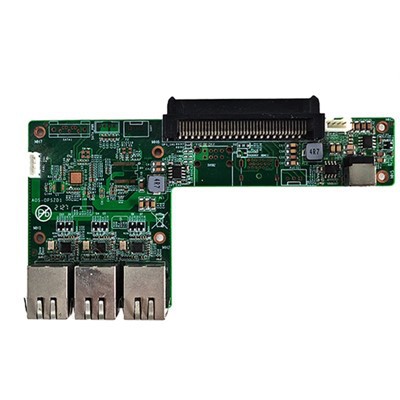
Setting up a Wi-Fi connection on an RK3399PRO Android OPS Computer is a fundamental step that allows users to access the internet wirelessly, enabling seamless online experiences. As a supplier of RK3399PRO Android OPS Computers, I understand the importance of providing clear guidance on this process. In this blog post, I'll walk you through the step-by-step procedure to set up a Wi-Fi connection on your RK3399PRO Android OPS Computer.
Prerequisites
Before you begin the process of setting up Wi-Fi, ensure that you have the following:
- RK3399PRO Android OPS Computer: This is the device on which you'll be setting up the Wi-Fi connection.
- Wi-Fi Router: You need a functioning Wi-Fi router with an active internet connection. Make sure you know the Wi-Fi network name (SSID) and password.
- Power Supply: Ensure that your RK3399PRO Android OPS Computer is properly powered on and running.
Step 1: Power On the RK3399PRO Android OPS Computer
First, connect your RK3399PRO Android OPS Computer to a power source and turn it on. Wait for the device to boot up completely. The boot-up time may vary depending on the system configuration, but it usually takes a few minutes.
Step 2: Access the Settings Menu
Once the device has booted up, you'll see the home screen. Locate and tap on the "Settings" icon. It is usually represented by a gear or cogwheel symbol. This will open the Settings menu, where you can configure various system settings, including Wi-Fi.


Step 3: Enable Wi-Fi
In the Settings menu, scroll down and find the "Wi-Fi" option. Tap on it to open the Wi-Fi settings page. On this page, you'll see a toggle switch next to the "Wi-Fi" option. Tap the switch to turn on Wi-Fi. Once Wi-Fi is enabled, the device will start scanning for available Wi-Fi networks in the vicinity.
Step 4: Select a Wi-Fi Network
After the scanning process is complete, you'll see a list of available Wi-Fi networks displayed on the screen. Look for the network name (SSID) of your Wi-Fi router in the list. Tap on the network name to select it.
Step 5: Enter the Wi-Fi Password
If the selected Wi-Fi network is secured with a password, a password entry field will appear on the screen. Enter the correct Wi-Fi password using the on-screen keyboard. Make sure to enter the password correctly, as an incorrect password will prevent you from connecting to the network. Once you've entered the password, tap the "Connect" button.
Step 6: Wait for the Connection to Be Established
After tapping the "Connect" button, the device will attempt to connect to the selected Wi-Fi network. This may take a few seconds to a minute, depending on the network conditions. You'll see a progress indicator on the screen while the connection is being established.
Step 7: Verify the Connection
Once the connection is established, you'll see the Wi-Fi icon on the status bar at the top of the screen. This indicates that your RK3399PRO Android OPS Computer is successfully connected to the Wi-Fi network. You can now open a web browser or any other internet-based app to test the connection.
Troubleshooting Tips
If you encounter any issues while setting up the Wi-Fi connection, here are some troubleshooting tips:
- Check the Wi-Fi Password: Make sure you've entered the correct Wi-Fi password. Double-check the password on your Wi-Fi router settings if necessary.
- Restart the Wi-Fi Router: Sometimes, restarting the Wi-Fi router can resolve connectivity issues. Turn off the router, wait for a few seconds, and then turn it back on.
- Move the Device Closer to the Router: If the Wi-Fi signal strength is weak, move your RK3399PRO Android OPS Computer closer to the Wi-Fi router. This can improve the signal strength and stability of the connection.
- Check for Firmware Updates: Ensure that your RK3399PRO Android OPS Computer has the latest firmware updates installed. Firmware updates can often fix bugs and improve the performance of the device, including Wi-Fi connectivity.
Other OPS Computer Options
In addition to the RK3399PRO Android OPS Computer, we also offer a range of other OPS computers to meet your specific needs. For example, you might be interested in our Standard ATX Industrial Large Motherboard 2 DDR4 ATX Motherboards, which provide high-performance computing capabilities for industrial applications. Our UHD OPS Computer for Meeting Board is ideal for meeting rooms and collaboration spaces, offering ultra-high-definition display and seamless connectivity. And if you're looking for a cost-effective solution, our Celeron J5005 J4105 J4005 OPS Computer provides reliable performance at an affordable price.
Contact Us for Procurement
If you're interested in purchasing an RK3399PRO Android OPS Computer or any of our other OPS computers, we'd love to hear from you. Our team of experts is ready to assist you with your procurement needs and provide you with detailed product information and pricing. Whether you're a small business or a large enterprise, we can offer customized solutions to meet your specific requirements.
References
- Android Developer Documentation: https://developer.android.com/
- Wi-Fi Alliance: https://www.wi-fi.org/