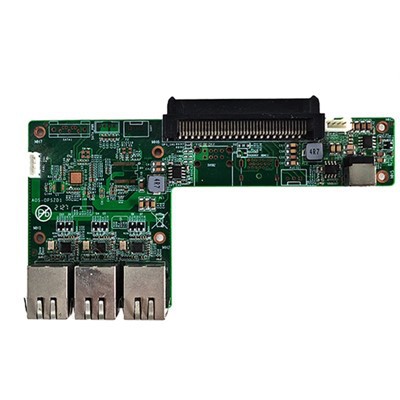
Sharing files between a 4K OPS Computer For Touch Panel and other devices can be a breeze if you know the right methods. As a supplier of 4K OPS Computers For Touch Panel, I've seen firsthand how important it is for users to transfer data seamlessly. In this blog, I'll walk you through some of the best ways to share files between your 4K OPS computer and other devices.
1. Using USB Flash Drives
One of the simplest and most straightforward methods is using a USB flash drive. It's a tried-and-true way that almost everyone can do. First, plug the USB flash drive into the device from which you want to copy the files. It could be your laptop, desktop, or even a mobile device if it has a USB port. Navigate to the files you want to share and copy them to the USB drive.
Once the files are on the USB drive, unplug it from the source device and plug it into the 4K OPS Computer For Touch Panel. Open the file explorer on the OPS computer and locate the USB drive. You can then copy the files from the USB drive to the desired location on the OPS computer. It's super easy and doesn't require any special software. This method is great for quickly transferring a small number of files or when you don't have a network connection.
2. Wi - Fi File Sharing
If both the 4K OPS Computer For Touch Panel and the other device are connected to the same Wi - Fi network, you can use built - in file sharing features.
On Windows Devices
For Windows computers, you can enable file sharing. First, make sure your computer is set to a private network. Then, right - click on the folder you want to share and select "Properties". Go to the "Sharing" tab and click "Advanced Sharing". Check the box that says "Share this folder" and set the appropriate permissions. You can also choose who can access the shared folder.
On the 4K OPS Computer For Touch Panel, open the file explorer and click on "Network" in the left - hand pane. You should see the shared computer on the network. Double - click on it to access the shared folders and copy the files you need.
On Mac Devices
On a Mac, you can use the "File Sharing" feature in the "System Preferences". Click on "Sharing", then check the "File Sharing" box. Click "Options" and set up which users can access shared folders. You can also choose which folders to share.
On the 4K OPS Computer For Touch Panel, you can connect to the Mac by opening the file explorer and going to "Network". Locate the Mac and enter the appropriate credentials if required to access the shared folders.


This Wi - Fi file - sharing method is convenient for sharing large files or multiple files between devices on the same local network. It's also useful for collaborating with colleagues in an office environment.
3. Cloud Storage Services
Cloud storage services like Google Drive, Dropbox, and OneDrive are another great option for file sharing. First, you need to install the cloud storage app on both the source device and the 4K OPS Computer For Touch Panel.
On the device with the files you want to share, open the cloud storage app and upload the files to your cloud storage account. Once the files are uploaded, open the cloud storage app on the 4K OPS Computer For Touch Panel. You can then download the files to the OPS computer.
The advantage of using cloud storage is that you can access your files from anywhere as long as you have an internet connection. It also provides a backup of your files in case something happens to your local devices. However, you need to have enough storage space in your cloud account, and there might be some limitations on the upload and download speeds depending on your internet service.
4. Bluetooth File Sharing
If your 4K OPS Computer For Touch Panel and the other device support Bluetooth, you can use Bluetooth to share files. First, make sure Bluetooth is turned on for both devices. On most devices, you can find the Bluetooth settings in the settings menu.
On the device with the files, locate the files you want to share. Right - click on the files (or use the sharing option on mobile devices) and select "Send via Bluetooth". Select the 4K OPS Computer For Touch Panel from the list of available Bluetooth devices.
On the 4K OPS Computer For Touch Panel, accept the incoming file transfer request. Once the transfer is complete, the files will be saved on the OPS computer. Bluetooth file sharing is handy for quickly sharing a few small files, especially when you don't have a Wi - Fi network or a USB drive.
5. LAN (Local Area Network) File Sharing
In a business or office setting, you can set up a LAN for file sharing. If your 4K OPS Computer For Touch Panel and other devices are connected to the same LAN, you can configure file sharing on the network.
First, set up a file server on one of the devices. This can be a dedicated server or just a powerful computer on the network. Share the folders on the file server as described in the Wi - Fi file - sharing section above.
On the 4K OPS Computer For Touch Panel, you can access the shared folders on the file server by opening the file explorer and going to the "Network" section. Locate the file server and access the shared folders to copy the files.
LAN file sharing is great for large - scale file sharing within an organization. It allows multiple users to access and share files efficiently and can handle high - volume data transfers.
As a supplier of 4K OPS Computers For Touch Panel, I understand that different users have different needs when it comes to file sharing. Whether you're a small business owner looking to share files between your meeting touchable TV's OPS computer and other office devices or an individual wanting to transfer files between your personal devices, there's a method that will suit you.
If you're interested in our OPS Computer for Meeting Touchable TV, I3 6100U/I5 6200U/I7 6500U CPU MINI Computer 4GB DDR4 2133MHz Computer, or ARM Chip Industrial Iot Gateway Internet Of Things Gateway Computer Embedded Computer, and want to learn more about how they can be integrated into your file - sharing setup, feel free to contact us for a procurement discussion. We're here to help you find the best solutions for your needs.
References
- Windows File Sharing Documentation
- Mac File Sharing Guide
- Google Drive, Dropbox, and OneDrive User Manuals
- Bluetooth Technical Specifications