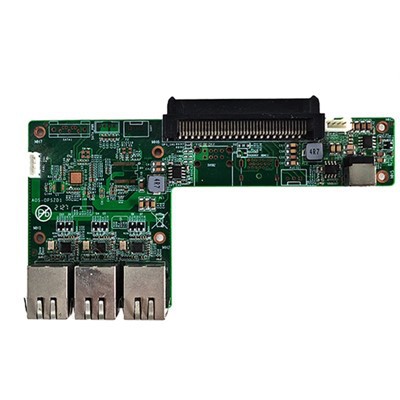
Hey there! I'm a supplier of the RK3288 Android OPS Computer, and today I'm gonna share with you how to share the Wi-Fi hotspot from this awesome device.
First off, let's talk a bit about the RK3288 Android OPS Computer. It's a powerful piece of tech that comes with a bunch of great features. Whether you're using it for business presentations, educational purposes, or just for some home entertainment, it can handle it all. And one of the really useful things you can do with it is share its Wi-Fi hotspot, which allows other devices to connect to the internet through it.
Step 1: Check Your Device Settings
Before you start sharing the Wi-Fi hotspot, you need to make sure your RK3288 Android OPS Computer is all set up. First, turn on your device and unlock the screen. Then, swipe down from the top of the screen to open the quick settings panel. Look for the "Hotspot" or "Wi-Fi Hotspot" option. If you don't see it right away, you might need to tap the "Edit" button and add it to the quick settings.


Once you've found the Wi-Fi hotspot option, tap on it to turn it on. You'll see a little icon appear on the status bar, indicating that the hotspot is active.
Step 2: Configure Your Hotspot Settings
Now that your hotspot is on, it's time to configure the settings. Tap on the Wi-Fi hotspot option again to open the settings menu. Here, you can change the name of your hotspot (also known as the SSID) and set a password. It's a good idea to choose a strong password to keep your network secure. You can also select the Wi-Fi channel and the security type. WPA2-PSK is a common and secure option.
Step 3: Connect Other Devices
Once you've configured your hotspot settings, it's time to connect other devices to it. On your other device (like a smartphone, tablet, or laptop), go to the Wi-Fi settings and look for your RK3288 Android OPS Computer's hotspot. Tap on it, enter the password you set earlier, and then tap "Connect." Once the connection is successful, your device will be able to access the internet through the RK3288 Android OPS Computer's hotspot.
Troubleshooting Tips
Sometimes, things don't go as smoothly as we'd like. If you're having trouble connecting other devices to your hotspot, here are a few things you can try:
- Check the Password: Make sure you're entering the correct password on the other device. It's easy to make a typo, so double-check it.
- Restart the Devices: Sometimes, a simple restart can fix a lot of problems. Try restarting both your RK3288 Android OPS Computer and the device you're trying to connect.
- Check the Wi-Fi Range: Make sure the device you're trying to connect is within range of the hotspot. If it's too far away, the signal might be too weak to connect.
Other OPS Computer Options
If you're interested in other OPS computer options, we also offer some great alternatives. For example, we have the Celeron J5005 J4105 J4005 OPS Computer, which is a powerful and reliable choice for a variety of applications. We also have the Intel J6412 Processor MINI Computer 2COM Port 6USB Mini Computer, which is perfect for those who need a compact and versatile device. And if you're looking for a computer for meeting boards, our UHD OPS Computer for Meeting Board is a great option.
Why Choose Our RK3288 Android OPS Computer?
There are several reasons why our RK3288 Android OPS Computer is a great choice. First of all, it's based on the powerful RK3288 processor, which provides fast and smooth performance. It also comes with a large amount of storage and memory, so you can store all your important files and run multiple apps at the same time.
In addition, our RK3288 Android OPS Computer is easy to use and install. It has a simple and intuitive interface, so even if you're not a tech expert, you'll be able to get up and running in no time. And if you ever have any questions or need help, our customer support team is always here to assist you.
Contact Us for Purchasing
If you're interested in purchasing our RK3288 Android OPS Computer or any of our other products, we'd love to hear from you. Whether you're a small business owner, an educator, or just someone who needs a reliable computer for personal use, we have the perfect solution for you. Just reach out to us, and we'll be happy to discuss your needs and provide you with a quote.
References
- Android Developer Documentation
- RK3288 Technical Manual