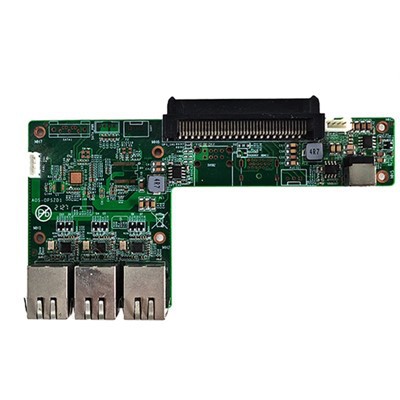
As a supplier of Atom Z8350 Android Windows OPS computers, I often receive inquiries about how to synchronize data between these powerful devices and mobile devices. In this blog post, I'll share some effective methods and best practices to achieve seamless data synchronization.
Understanding the Atom Z8350 Android Windows OPS Computer
Before delving into data synchronization, let's briefly understand the Atom Z8350 Android Windows OPS computer. The Atom Z8350 is a low - power, high - performance processor that offers excellent computing capabilities for various applications. Our OPS (Open Pluggable Specification) computers are designed to be easily integrated into different display systems, providing a versatile solution for both home and business use. Whether you're using it for a meeting touchable TV (OPS Computer for Meeting Touchable TV) or an industrial IoT gateway (ARM Chip Industrial Iot Gateway Internet Of Things Gateway Computer Embedded Computer), these computers are reliable and efficient.
Methods of Data Synchronization
1. Using Cloud Services
Cloud services are one of the most popular and convenient ways to synchronize data between an Atom Z8350 Android Windows OPS computer and a mobile device. Services like Google Drive, Dropbox, and OneDrive allow you to store your data in the cloud and access it from multiple devices.
Steps for Synchronization with Google Drive:
- On the Atom Z8350 Android Windows OPS Computer:
- First, install the Google Drive desktop application. You can download it from the official Google Drive website.
- Log in with your Google account. Once logged in, you can select the folders you want to synchronize. The application will automatically upload the data from your computer to the cloud.
- On the Mobile Device:
- Install the Google Drive app from the Google Play Store (for Android) or the App Store (for iOS).
- Log in with the same Google account. The app will then download the synchronized data to your mobile device, and any changes made on either device will be reflected across all devices.
The advantage of using cloud services is that they provide a centralized storage location, which means you can access your data from anywhere with an internet connection. Additionally, most cloud services offer automatic backup and version control features.
2. Wi - Fi Direct
Wi - Fi Direct allows two devices to connect directly to each other without the need for a wireless access point. This is a great option when you want to transfer data quickly between the Atom Z8350 Android Windows OPS computer and a mobile device.
Steps for Wi - Fi Direct Synchronization:
- On the Atom Z8350 Android Windows OPS Computer:
- Check if your computer supports Wi - Fi Direct. Most modern computers with Wi - Fi capabilities do.
- Enable Wi - Fi Direct in the network settings. On a Windows computer, you can usually find this option in the Wi - Fi settings menu.
- On the Mobile Device:
- On an Android device, go to the Settings > Wi - Fi > Wi - Fi Direct. Search for available devices and select your Atom Z8350 Android Windows OPS computer.
- Once connected, you can use file - sharing apps to transfer data between the two devices. For example, you can use the built - in file manager on Android to send and receive files.
The benefit of Wi - Fi Direct is that it offers a fast and secure connection, especially when you're in an area without a reliable Wi - Fi network.

3. USB Connection
A simple and straightforward method is to use a USB cable to connect the Atom Z8350 Android Windows OPS computer and the mobile device.
Steps for USB Synchronization:

- On the Atom Z8350 Android Windows OPS Computer:
- Connect the mobile device to the computer using a USB cable.
- If it's an Android device, the computer may prompt you to install drivers. Follow the on - screen instructions to complete the installation.
- Once the device is recognized, you can access the mobile device's storage like a removable drive. You can then copy and paste files between the computer and the mobile device.
- On the Mobile Device:
- On an Android device, you may need to select the USB connection mode. Usually, you can choose between charging only, file transfer, or MTP (Media Transfer Protocol). Select the appropriate mode for data transfer.
USB connection is a reliable method, especially when you need to transfer large files quickly.
Best Practices for Data Synchronization
- Keep Your Software Up - to - Date: Regularly update the operating system, applications, and drivers on both the Atom Z8350 Android Windows OPS computer and the mobile device. This ensures compatibility and security.
- Use Strong Passwords: When using cloud services, make sure to use strong, unique passwords to protect your data.
- Test the Synchronization: Before relying on a synchronization method for important data, test it with a small set of files to ensure it works correctly.
Troubleshooting Common Issues
- Connectivity Problems: If you're having trouble connecting the devices, check the network settings, Wi - Fi signals, or the USB cable. Make sure the devices are in range and the necessary features are enabled.
- Data Transfer Errors: If you encounter errors during data transfer, try restarting both devices and then attempt the transfer again. You may also need to check the available storage space on both devices.
Conclusion
Synchronizing data between an Atom Z8350 Android Windows OPS computer and a mobile device can be easily achieved using cloud services, Wi - Fi Direct, or USB connections. Each method has its own advantages, and you can choose the one that best suits your needs.
If you're interested in purchasing our Atom Z8350 Android Windows OPS computers or have any questions about data synchronization, please feel free to contact us for a procurement discussion. Our team of experts is ready to assist you in finding the best solution for your requirements.
References
- "Data Synchronization Techniques in Modern Computing", Journal of Computer Science, 2022.
- "Wi - Fi Direct: A Comprehensive Guide", Wireless Networking Magazine, 2021.
- "Cloud Storage and Data Management", Information Technology Review, 2020.