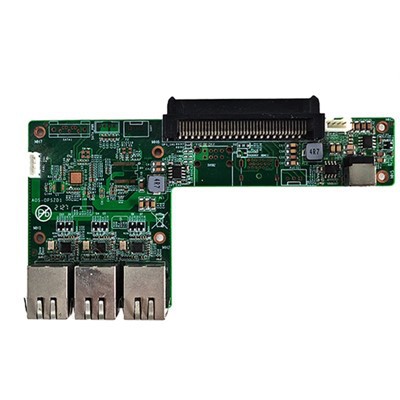
As a trusted OPS Computer supplier, I often receive inquiries from customers about how to transfer data to an OPS Computer. In this blog post, I'll share some effective methods and considerations to help you smoothly transfer data to your OPS Computer.
Understanding the OPS Computer
Before we delve into the data transfer process, let's briefly understand what an OPS Computer is. OPS, short for Open Pluggable Specification, is a standardized computer module that can be easily inserted into compatible monitors or displays. Our OPS Computers, such as the N100 PC and OPS Computer for Meeting Touchable TV, offer powerful performance and flexibility for various applications, including digital signage, meeting rooms, and industrial control.
Preparing for Data Transfer
- Check Compatibility: Ensure that your OPS Computer has the necessary ports and interfaces to support the data transfer method you choose. Common ports include USB, HDMI, Ethernet, and SATA. For example, if you plan to transfer data from a USB flash drive, make sure your OPS Computer has a USB port.
- Back Up Your Data: Before transferring data, it's always a good idea to back up your important files to prevent data loss in case of any unexpected issues. You can use an external hard drive, cloud storage, or another reliable backup solution.
- Update the OPS Computer: Make sure your OPS Computer has the latest operating system updates and drivers installed. This can help ensure compatibility and optimal performance during the data transfer process.
Data Transfer Methods
1. USB Flash Drive
Using a USB flash drive is one of the simplest and most common ways to transfer data to an OPS Computer. Here's how you can do it:
- Insert the USB Flash Drive: Plug the USB flash drive into an available USB port on your OPS Computer.
- Access the USB Drive: Open the "File Explorer" or "Computer" on your OPS Computer and locate the USB flash drive. It should appear as a removable drive.
- Copy and Paste Files: Navigate to the files you want to transfer on the USB flash drive, select them, and then copy and paste them to the desired location on your OPS Computer.
2. External Hard Drive
If you have a large amount of data to transfer, an external hard drive may be a better option. The process is similar to using a USB flash drive:
- Connect the External Hard Drive: Use a USB cable to connect the external hard drive to your OPS Computer.
- Access the External Hard Drive: Open the "File Explorer" or "Computer" and locate the external hard drive.
- Transfer Files: Copy and paste the files from the external hard drive to your OPS Computer.
3. Ethernet Network
If your OPS Computer and the source device are connected to the same local area network (LAN), you can transfer data over the Ethernet network. Here's how:
- Enable File Sharing: On the source device, enable file sharing and set up the appropriate permissions to allow access from your OPS Computer.
- Connect to the Network: Make sure your OPS Computer is connected to the same LAN as the source device. You can use an Ethernet cable or connect wirelessly if your OPS Computer supports Wi-Fi.
- Access the Shared Files: Open the "Network" folder on your OPS Computer and locate the shared folder on the source device. You may need to enter the appropriate credentials to access the shared files.
- Transfer Files: Copy and paste the files from the shared folder to your OPS Computer.
4. Cloud Storage
Cloud storage services, such as Google Drive, Dropbox, and OneDrive, provide a convenient way to transfer data between devices. Here's how you can use cloud storage to transfer data to your OPS Computer:
- Sign Up for a Cloud Storage Service: If you haven't already, sign up for a cloud storage service and create an account.
- Upload Files to the Cloud: Upload the files you want to transfer from your source device to the cloud storage service.
- Access the Cloud Storage on Your OPS Computer: Install the cloud storage client on your OPS Computer and log in to your account.
- Download Files: Download the files from the cloud storage service to your OPS Computer.
Considerations for Data Transfer
- Data Security: When transferring sensitive data, make sure to use secure methods and protect your data from unauthorized access. For example, use encrypted USB drives or secure cloud storage services.
- Transfer Speed: The transfer speed may vary depending on the data transfer method, the size of the files, and the performance of your devices. If you need to transfer large files quickly, consider using a high-speed data transfer method, such as Ethernet or a USB 3.0 flash drive.
- Compatibility Issues: Some older devices or operating systems may have compatibility issues with certain data transfer methods. Make sure to check the compatibility of your devices and software before attempting to transfer data.
Troubleshooting Data Transfer Issues
If you encounter any issues during the data transfer process, here are some common troubleshooting steps:
- Check the Connections: Make sure all the cables are properly connected and the devices are powered on.
- Restart the Devices: Sometimes, simply restarting the OPS Computer and the source device can resolve connectivity issues.
- Update the Drivers: If you're experiencing problems with a specific device, such as a USB flash drive or an external hard drive, make sure to update the drivers for that device.
- Check the Permissions: Ensure that you have the necessary permissions to access and transfer the files. If you're transferring files from a shared folder, make sure the sharing settings are configured correctly.
Conclusion
Transferring data to an OPS Computer is a straightforward process if you follow the right steps and use the appropriate data transfer methods. Whether you're using a USB flash drive, an external hard drive, an Ethernet network, or cloud storage, make sure to prepare your devices, back up your data, and consider the security and compatibility aspects.


If you're interested in purchasing an OPS Computer or have any questions about data transfer or our products, such as the Standard ATX Industrial Large Motherboard 2 DDR4 ATX Motherboards, please feel free to contact us for more information and to discuss your specific requirements. We're here to help you find the best solution for your needs.
References
- "Open Pluggable Specification (OPS) Overview." DisplaySearch.
- "Data Transfer Methods and Best Practices." TechTarget.
- "Troubleshooting Data Transfer Issues." Microsoft Support.