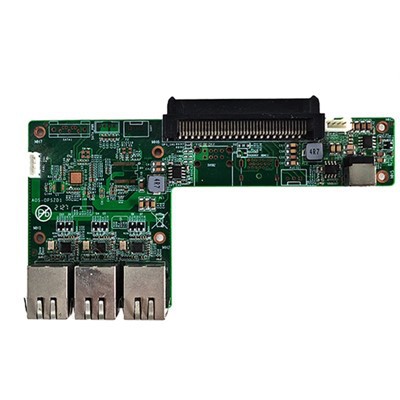
Transferring files to and from a XEON Network Workstation Server is a crucial task for many users, especially in professional and enterprise environments. As a supplier of XEON Network Workstation Servers, I understand the importance of providing clear guidance on this process. In this blog post, I will share several methods for transferring files to and from the XEON Network Workstation Server, ensuring that you can efficiently manage your data.
1. Using Network File Sharing
One of the most common and straightforward methods for file transfer is through network file sharing. This method allows multiple users on the same network to access and transfer files to and from the server.
Step 1: Enable File Sharing on the Server
First, you need to enable file sharing on the XEON Network Workstation Server. This typically involves configuring the server's operating system to share specific folders. On a Windows Server, for example, you can right - click on the folder you want to share, select "Properties", and then go to the "Sharing" tab. Click "Advanced Sharing", check the "Share this folder" box, and set appropriate permissions.
Step 2: Connect to the Shared Folder
On the client side, you can connect to the shared folder. On a Windows client, open "File Explorer", click on "Network" in the left - hand pane. Locate the XEON Network Workstation Server and double - click on the shared folder. You may be prompted to enter your credentials if the folder has restricted access.


Step 3: Transfer Files
Once you are connected to the shared folder, you can simply drag and drop files between your local computer and the shared folder on the server. This method is intuitive and easy to use, making it suitable for most users.
2. Using FTP (File Transfer Protocol)
FTP is a standard network protocol used for the transfer of files between a client and a server on a computer network.
Step 1: Install and Configure an FTP Server on the XEON Server
There are many FTP server software options available, such as FileZilla Server for Windows or vsftpd for Linux. Install the FTP server software on the XEON Network Workstation Server and configure it according to your requirements. You need to set up user accounts, define the directories that can be accessed via FTP, and configure security settings.
Step 2: Connect to the FTP Server
On the client side, you need an FTP client. FileZilla is a popular free FTP client. Open FileZilla, enter the server's IP address, your username, and password in the appropriate fields, and click "Quickconnect".
Step 3: Transfer Files
Once connected to the FTP server, the left - hand pane of the FTP client shows your local files, and the right - hand pane shows the files on the server. You can transfer files by dragging and dropping them between the two panes or using the upload and download buttons provided by the FTP client.
3. Using Remote Desktop Connection
If you have administrative access to the XEON Network Workstation Server, you can use Remote Desktop Connection to transfer files.
Step 1: Enable Remote Desktop on the Server
On the XEON Server, go to the system properties and enable Remote Desktop. You can also configure which users are allowed to connect remotely.
Step 2: Connect to the Server via Remote Desktop
On the client computer, open the Remote Desktop Connection application. Enter the server's IP address or hostname and your credentials. Before connecting, click on "Options" and go to the "Local Resources" tab. Under "Local devices and resources", click "More" and select the drives you want to share with the server.
Step 3: Transfer Files
Once you are connected to the server via Remote Desktop, you can access the shared local drives on the server. Open "File Explorer" on the server, and you will see the shared local drives listed. You can then copy and paste files between the server's local storage and the shared local drives.
4. Using Cloud - Based Solutions
Cloud - based solutions can also be used for file transfer. For example, you can use cloud storage services like Google Drive, Dropbox, or OneDrive.
Step 1: Install and Configure the Cloud Storage Client
Install the cloud storage client on both the XEON Network Workstation Server and your local computer. Log in to your account and configure the settings according to your preferences.
Step 2: Upload and Download Files
Upload the files you want to transfer from your local computer to the cloud storage. Then, on the XEON Server, download the files from the cloud storage. This method is convenient as it allows you to access your files from anywhere with an internet connection.
Hardware Considerations
When transferring files to and from the XEON Network Workstation Server, it is important to consider the hardware capabilities of the server. A high - performance server like the XEON can handle large - scale file transfers efficiently. However, the network speed and the storage capacity of the server can also affect the transfer speed.
For example, if you are dealing with large - volume data transfers, you may want to consider upgrading the server's network interface to a higher - speed option, such as 10 Gigabit Ethernet. Additionally, using high - performance storage devices like SSDs can significantly improve the read and write speeds, reducing the time required for file transfer.
Related Products
If you are looking for complementary products to enhance your XEON Network Workstation Server experience, we offer a range of high - quality products. For example, the 2GB DDR3 1333 MHz Rail Transit Computer CPU ARM Series Rail Transit Computer is a powerful and reliable option for specific computing needs. The 3.5 - inch DDR4 Mainboard 6COM Interface Mainboard J6412 Mainboard provides excellent connectivity and performance. And the 4K OPS Computer for Touch Panel is perfect for applications that require high - resolution display.
Conclusion
Transferring files to and from the XEON Network Workstation Server can be done using various methods, each with its own advantages and disadvantages. Whether you choose network file sharing, FTP, remote desktop connection, or cloud - based solutions, the key is to select the method that best suits your needs in terms of security, convenience, and performance.
If you are interested in purchasing a XEON Network Workstation Server or any of our related products, or if you have any questions about file transfer or server configuration, please feel free to contact us for a procurement discussion. We are committed to providing you with the best solutions and support.
References
- Microsoft. Windows Server documentation.
- FileZilla. FileZilla Server and Client documentation.
- Linux Documentation Project. vsftpd configuration guide.