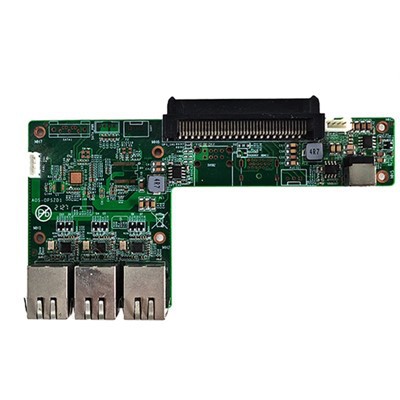
Hey there! As a supplier of OPS computers, I've seen firsthand how important it is to keep your device's drivers up - to - date. In this blog, I'll walk you through the process of updating drivers on an OPS computer.
Why Update Drivers?
Before we dive into the how - to, let's quickly talk about why you should update your drivers. Drivers are like the translators between your computer's hardware and its operating system. When you update them, you get better performance, enhanced security, and compatibility with the latest software. For example, an outdated graphics driver might cause your OPS computer to lag when you're using it for a high - definition presentation with the UHD OPS Computer for Meeting Board. Updating it can make the visuals smoother and more vibrant.
Step 1: Identify Your OPS Computer Model
The first thing you need to do is figure out what model of OPS computer you have. It's a bit like knowing the make and model of your car before you go looking for parts. You can usually find this information in the system settings of your computer. On most OPS computers, you can right - click on the "This PC" icon on your desktop and select "Properties." Here, you'll see details about your computer's hardware, including the model number.
If you're using an N100 PC, the model number will be clearly stated. Once you have this information, you're ready to move on to the next step.
Step 2: Check the Manufacturer's Website
Once you know your OPS computer model, head over to the manufacturer's website. This is where you'll find the official and most up - to - date drivers for your device. Most manufacturers have a dedicated support section on their website. Look for a search bar or a dropdown menu where you can enter your computer's model number.
For example, if you have an ARM - based OPS computer like the ARM Chip Industrial Iot Gateway Internet Of Things Gateway Computer Embedded Computer, you'll want to find the specific drivers for its ARM chipset. The manufacturer's website will have detailed instructions on how to download and install these drivers.
Step 3: Download the Drivers
After you've found the correct drivers on the manufacturer's website, it's time to download them. Make sure you're downloading the right version of the driver for your operating system. For instance, if you're using Windows 10 on your OPS computer, you need the Windows 10 - compatible drivers.
Most driver download pages will have a big "Download" button. Click on it, and the driver file will start downloading to your computer. It might take a few minutes, depending on your internet speed.
Step 4: Install the Drivers
Once the download is complete, locate the driver file on your computer. It's usually in your "Downloads" folder. Double - click on the file to start the installation process.
You'll see a series of prompts guiding you through the installation. Read each prompt carefully and follow the instructions. In most cases, you just need to click "Next" a few times until the installation is complete. After the installation, your computer might need to restart to apply the changes.


Step 5: Use Device Manager (Optional)
If you're having trouble finding the right drivers on the manufacturer's website or if you prefer a more hands - on approach, you can use the Device Manager on your OPS computer. To open it, right - click on the "Start" button and select "Device Manager."
In the Device Manager, you'll see a list of all the hardware devices on your computer. Each device has a small arrow next to it. Click on the arrow to expand the list and see the specific drivers for that device. If you see a yellow exclamation mark next to a device, it means there's a problem with the driver. Right - click on the device and select "Update driver." You can then choose to search automatically for updated driver software.
Step 6: Regularly Check for Updates
Updating your drivers isn't a one - time thing. You should check for driver updates regularly, just like you'd get your car serviced every few months. Set a reminder on your calendar to check the manufacturer's website or use the built - in update tools on your computer.
Some operating systems, like Windows, have an automatic update feature that can check for driver updates in the background. You can enable this feature to make sure your OPS computer always has the latest drivers.
Troubleshooting
Sometimes, things don't go as smoothly as we'd like. Here are some common issues you might encounter when updating drivers on an OPS computer and how to fix them:
Driver Installation Fails
If the driver installation fails, first make sure you downloaded the correct driver for your operating system. You can also try running the installation file as an administrator. Right - click on the driver file and select "Run as administrator."
Computer Freezes or Crashes
If your computer freezes or crashes after installing a new driver, it could be that the driver is incompatible with your hardware. In this case, you can use the System Restore feature on your computer to go back to a time when everything was working fine. Then, try to find a different version of the driver or contact the manufacturer's support team for help.
Network Connectivity Issues
If you're having trouble downloading drivers from the manufacturer's website, check your internet connection. Make sure you're connected to a stable network. You can also try using a different browser or clearing your browser's cache and cookies.
Conclusion
Updating the drivers on your OPS computer is an important part of keeping it running smoothly. By following these steps, you can ensure that your computer has the latest performance enhancements, security patches, and compatibility with new software.
If you're in the market for a new OPS computer or need help with driver updates for your existing device, don't hesitate to reach out. We're here to assist you in getting the most out of your OPS computer. Whether you're using it for business meetings, industrial IoT applications, or just everyday tasks, we've got the products and support you need.
References
- General knowledge from years of experience as an OPS computer supplier.
- Manufacturer's documentation for various OPS computer models.