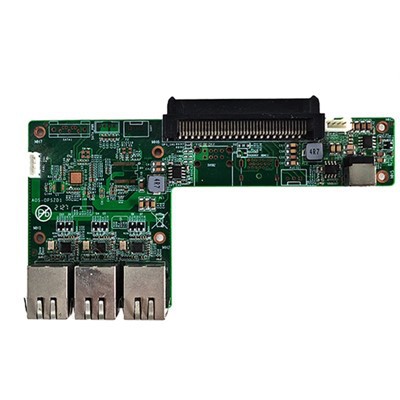
As a trusted supplier of RK3368 Interactive Display Mainboards, I understand the significance of keeping your hardware up - to - date. Firmware updates are not just about adding new features; they can also enhance performance, improve security, and fix bugs. In this blog, I'll guide you through the process of updating the firmware of the RK3368 Interactive Display Mainboard.
Understanding the Importance of Firmware Updates
Before we dive into the update process, let's briefly discuss why firmware updates are crucial. The firmware of your RK3368 Interactive Display Mainboard is like the operating system of your hardware. It controls how the different components of the mainboard interact with each other and with external devices.
- Performance Enhancement: Newer firmware versions often come with optimizations that can make your mainboard run more efficiently. This could mean faster boot times, smoother video playback, and improved overall responsiveness.
- Security Patches: Just like software on your computer, firmware can have security vulnerabilities. Manufacturers regularly release firmware updates to patch these vulnerabilities, protecting your system from potential threats.
- Bug Fixes: If you've been experiencing issues such as screen flickering, unresponsive touch input, or connectivity problems, a firmware update might be the solution. Developers often identify and fix these bugs in subsequent firmware releases.
Prerequisites for Firmware Update
Before you start the firmware update process, there are a few things you need to do:
- Backup Your Data: Although the firmware update should not directly affect your data, it's always a good practice to back up any important files on your mainboard. This can prevent data loss in case something goes wrong during the update.
- Check the Compatibility: Make sure you are downloading the correct firmware version for your RK3368 Interactive Display Mainboard. Using an incompatible firmware can cause serious issues with your mainboard.
- Prepare a Stable Power Supply: A power outage during the firmware update can corrupt the firmware and render your mainboard inoperable. Ensure that your mainboard is connected to a stable power source throughout the update process.
- Download the Firmware: Visit the official website of your mainboard manufacturer to download the latest firmware version. You can usually find the download link in the support or downloads section of the website.
Step - by - Step Guide to Firmware Update
Here is a general step - by - step guide to updating the firmware of your RK3368 Interactive Display Mainboard:
Step 1: Enter Recovery Mode
- First, power off your RK3368 Interactive Display Mainboard.
- Find the recovery button on your mainboard. The location of the recovery button may vary depending on the specific model of your mainboard. Refer to the user manual if you're having trouble finding it.
- Press and hold the recovery button while powering on the mainboard. Keep holding the button until the mainboard enters recovery mode. You'll usually see a specific screen or indicator to confirm that you're in recovery mode.
Step 2: Connect to a Computer
- Use a USB cable to connect your RK3368 Interactive Display Mainboard to a computer. Make sure your computer has the necessary drivers installed to recognize the mainboard. You can usually download the drivers from the manufacturer's website.
- Once connected, your computer should detect the mainboard in recovery mode.
Step 3: Run the Firmware Update Tool
- On your computer, locate and run the firmware update tool provided by the mainboard manufacturer. This tool is usually a software application that you downloaded along with the firmware.
- The update tool will automatically detect your mainboard and display information about the current firmware version and the available update.
- Follow the on - screen instructions in the update tool to start the firmware update process. The tool will prompt you to select the downloaded firmware file. Navigate to the location where you saved the firmware file and select it.
Step 4: Wait for the Update to Complete
- Once you've selected the firmware file, click the "Update" or "Start" button in the update tool. The update process will begin, and it may take several minutes to complete.
- Do not interrupt the update process during this time. Keep an eye on the progress bar in the update tool to monitor the status of the update.
Step 5: Restart Your Mainboard
- After the update is complete, the update tool will usually prompt you to restart your mainboard. Disconnect the USB cable from your mainboard and computer.
- Power off your mainboard and then power it on again. Your mainboard will now boot up with the new firmware version.
Troubleshooting
If you encounter any issues during the firmware update process, here are some common solutions:


- Mainboard Not Detected: Make sure the USB cable is properly connected and that your computer has the correct drivers installed. Try using a different USB cable or USB port on your computer.
- Update Failed: Check if you downloaded the correct firmware version for your mainboard. If the problem persists, contact the manufacturer's support team for further assistance.
- Mainboard Not Booting After Update: This could indicate a corrupted firmware. Try repeating the firmware update process, making sure to follow all the steps carefully. If the issue still exists, it may be necessary to send your mainboard to the manufacturer for repair.
Related Products
As a supplier, we also offer a range of other high - quality products. For example, we have the Intel J6412 Processor MINI Computer 2COM Port 6USB Mini Computer, which is a compact and powerful mini - computer suitable for various applications. Another great option is the Intel 4 - 5 Generation CPU 3.5 - inch Industrial Motherboard, designed for industrial use with reliable performance. And if you're looking for an OPS computer, our H310 8Th 9Th Generation CORE OPS Computer is a great choice.
Conclusion
Updating the firmware of your RK3368 Interactive Display Mainboard is a relatively straightforward process that can bring significant benefits to your system. By following the steps outlined in this blog, you can ensure that your mainboard is running the latest firmware version, with improved performance, security, and stability.
If you're interested in purchasing RK3368 Interactive Display Mainboards or any of our other products, or if you have any questions about the firmware update process, please feel free to contact us for procurement and further discussions.
References
- Manufacturer's user manual for RK3368 Interactive Display Mainboard
- Technical documents and support resources from the mainboard manufacturer's official website