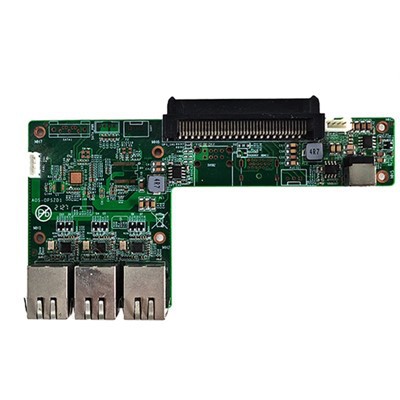
As a supplier of Atom Z8350 Android Windows OPS computers, I often receive inquiries from customers about upgrading the storage of these devices. Upgrading the storage can significantly enhance the performance and functionality of the computer, allowing users to store more data, install additional applications, and run resource-intensive programs smoothly. In this blog post, I will guide you through the process of upgrading the storage of an Atom Z8350 Android Windows OPS computer, providing you with detailed steps and useful tips.
Understanding the Atom Z8350 Android Windows OPS Computer
Before diving into the storage upgrade process, it's essential to understand the basic features and components of the Atom Z8350 Android Windows OPS computer. The Atom Z8350 is a low-power quad-core processor designed for use in small form factor devices such as tablets, laptops, and mini-PCs. It offers a balance between performance and energy efficiency, making it suitable for a wide range of applications.
The OPS (Open Pluggable Specification) is a standardized interface that allows for easy integration of a computer into a display or other device. An Atom Z8350 Android Windows OPS computer combines the power of the Atom Z8350 processor with the flexibility of the OPS interface, providing a compact and powerful computing solution for various industries, including education, hospitality, and digital signage.
Reasons to Upgrade the Storage
There are several reasons why you might want to upgrade the storage of your Atom Z8350 Android Windows OPS computer:
- Increased Storage Capacity: The stock storage on most Atom Z8350 Android Windows OPS computers is limited, typically ranging from 32GB to 128GB. Upgrading the storage allows you to store more files, such as documents, photos, videos, and applications, without worrying about running out of space.
- Improved Performance: A faster storage device, such as an SSD (Solid State Drive), can significantly improve the boot time, application launch speed, and overall system responsiveness of your computer. This is especially beneficial if you use resource-intensive applications or multitask frequently.
- Enhanced Compatibility: Some applications and operating systems require a certain amount of storage space to function properly. Upgrading the storage can ensure that your computer meets the requirements of these applications and operating systems, allowing you to take advantage of their full features and functionality.
Types of Storage Upgrades
There are two main types of storage upgrades available for an Atom Z8350 Android Windows OPS computer:
- Internal Storage Upgrade: This involves replacing the existing internal storage device, such as an eMMC (Embedded MultiMediaCard) or SSD, with a larger or faster one. Internal storage upgrades typically require opening the computer and physically installing the new storage device, which can be a more complex and time-consuming process.
- External Storage Upgrade: This involves connecting an external storage device, such as a USB flash drive, external hard drive, or SD card, to the computer. External storage upgrades are generally easier to install and do not require opening the computer, but they may not offer the same level of performance as an internal storage upgrade.
Internal Storage Upgrade Process
If you decide to upgrade the internal storage of your Atom Z8350 Android Windows OPS computer, follow these steps:


- Backup Your Data: Before starting the upgrade process, it's important to backup all your important data, including documents, photos, videos, and applications. This will ensure that you don't lose any data in case something goes wrong during the upgrade.
- Gather the Necessary Tools and Equipment: You will need a few tools and equipment to perform the internal storage upgrade, including a Phillips head screwdriver, an anti-static wrist strap, and a replacement storage device. Make sure to choose a storage device that is compatible with your computer's motherboard and has the desired capacity and performance.
- Power Off the Computer: Turn off the computer and unplug it from the power source. This will prevent any electrical damage to the computer and ensure your safety during the upgrade process.
- Open the Computer Case: Use the Phillips head screwdriver to remove the screws on the back of the computer case. Carefully remove the case to expose the internal components of the computer.
- Locate the Existing Storage Device: The existing storage device is usually located on the motherboard and is connected to it via a connector. Identify the type of storage device (e.g., eMMC or SSD) and its location on the motherboard.
- Remove the Existing Storage Device: Use the anti-static wrist strap to ground yourself and prevent static electricity from damaging the components of the computer. Carefully disconnect the existing storage device from the motherboard by gently pulling it out of the connector.
- Install the New Storage Device: Align the new storage device with the connector on the motherboard and gently push it into place until it is securely connected. Make sure that the storage device is properly seated and that there are no loose connections.
- Close the Computer Case: Carefully replace the computer case and secure it with the screws. Make sure that the case is properly aligned and that there are no gaps or loose parts.
- Power On the Computer: Plug the computer back into the power source and turn it on. The computer should automatically detect the new storage device and prompt you to initialize it. Follow the on-screen instructions to initialize the new storage device and format it.
- Restore Your Data: Once the new storage device is initialized and formatted, you can restore your data from the backup. Use a backup software or a file manager to copy the data from the backup to the new storage device.
External Storage Upgrade Process
If you decide to upgrade the storage of your Atom Z8350 Android Windows OPS computer using an external storage device, follow these steps:
- Choose an External Storage Device: There are several types of external storage devices available, including USB flash drives, external hard drives, and SD cards. Choose a storage device that has the desired capacity and performance and is compatible with your computer's operating system and USB port.
- Connect the External Storage Device: Plug the external storage device into one of the USB ports on your computer. The computer should automatically detect the external storage device and prompt you to initialize it. Follow the on-screen instructions to initialize the external storage device and format it.
- Configure the Computer to Use the External Storage Device: Once the external storage device is initialized and formatted, you can configure the computer to use it as the default storage location for certain applications or files. To do this, go to the settings menu on your computer and select the storage or device settings option. From there, you can choose the external storage device as the default storage location for downloads, photos, videos, and other files.
- Transfer Your Data to the External Storage Device: Use a file manager or a backup software to transfer your data from the internal storage device to the external storage device. Make sure to organize your data into folders and subfolders to make it easier to find and access.
Tips for a Successful Storage Upgrade
Here are some tips to help you ensure a successful storage upgrade:
- Research Compatibility: Before purchasing a replacement storage device, make sure to research its compatibility with your computer's motherboard and operating system. Check the manufacturer's website or consult with a technical support representative for more information.
- Use an Anti-Static Wrist Strap: When working with the internal components of your computer, it's important to use an anti-static wrist strap to prevent static electricity from damaging the components. This will help ensure the longevity and reliability of your computer.
- Follow the Manufacturer's Instructions: Always follow the manufacturer's instructions when performing a storage upgrade. This will help ensure that you install the new storage device correctly and avoid any potential issues or damage to the computer.
- Test the New Storage Device: After installing the new storage device, test it to make sure it is working properly. Run some benchmark tests or transfer some files to the new storage device to check its performance and reliability.
Conclusion
Upgrading the storage of an Atom Z8350 Android Windows OPS computer can significantly enhance its performance, functionality, and storage capacity. Whether you choose to upgrade the internal storage or use an external storage device, following the steps and tips outlined in this blog post will help you ensure a successful upgrade.
If you have any questions or need further assistance with the storage upgrade process, please feel free to contact us. As a leading supplier of Link Text: SOH310B Whiskylake Touch Display OPS-C Computer, Link Text: UHD OPS Computer for Meeting Board, and Link Text: RK3399A Touch Panel Android Motherboard, we have the expertise and experience to help you find the right storage solution for your needs. Contact us today to discuss your requirements and explore our range of products and services.
References
- Manufacturer's documentation for the Atom Z8350 Android Windows OPS computer
- Online resources and forums for computer hardware upgrades
- Technical support articles and guides from storage device manufacturers