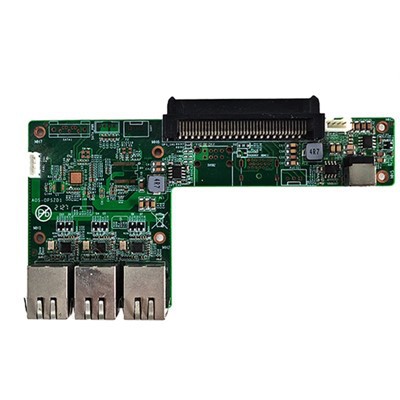
Hey there! As a supplier of 4K OPS Computer For Touch Panel, I know how crucial it is to keep your data safe. In this blog, I'll walk you through the steps to back up data on a 4K OPS Computer For Touch Panel.
Why Data Backup is a Big Deal
First off, let's talk about why backing up your data is so important. You've probably heard horror stories about data loss - maybe a hard drive crashes, there's a power surge, or you accidentally delete something crucial. Losing your data can be a real nightmare, especially if it's important business info, customer data, or creative work. That's where backups come in. They're like an insurance policy for your digital life, ensuring that you can get your data back even if something goes wrong.
Understanding Your 4K OPS Computer For Touch Panel
Before we dive into the backup process, it's a good idea to understand a bit about your 4K OPS Computer For Touch Panel. These computers are designed to work seamlessly with touch panels, offering high - resolution 4K display capabilities. They're often used in various industries, such as education, retail, and corporate settings, for interactive displays and presentations.
Some of the popular models we offer include the RK3399A Touch Panel Android Motherboard, the ARM Chip Industrial Iot Gateway Internet Of Things Gateway Computer Embedded Computer, and the SOH310B Whiskylake Touch Display OPS - C Computer. Each of these models has its own features and specifications, but the basic data backup principles apply to all of them.
Different Backup Methods
There are several ways to back up data on your 4K OPS Computer For Touch Panel. Let's take a look at some of the most common ones.
External Hard Drives
One of the simplest and most popular methods is using an external hard drive. It's like having an extra storage space that you can connect to your computer whenever you need to back up your data.
Here's how you can do it:
- First, connect your external hard drive to your 4K OPS Computer For Touch Panel. Most modern computers support USB connections, so just plug it in.
- Once it's connected, your computer should recognize the external drive. You can usually find it in the "My Computer" or "This PC" section.
- Now, decide what data you want to back up. You can choose to back up specific files, folders, or even your entire hard drive. To select files or folders, just navigate to them in your computer's file explorer and right - click. Then, choose "Copy".
- Next, open the external hard drive in the file explorer. Right - click inside the drive and choose "Paste". Your data will start copying over to the external drive.
- Wait for the copying process to finish. The time it takes depends on the amount of data you're backing up.
The advantage of using an external hard drive is that it's relatively inexpensive and easy to use. You can also take it with you and use it to back up data from other computers if needed.
Cloud Storage
Cloud storage is another great option. It allows you to store your data on remote servers over the internet. Services like Google Drive, Dropbox, and OneDrive are well - known cloud storage providers.
Here's how to back up your data to the cloud:
- Sign up for a cloud storage service if you haven't already. Most services offer a free trial period with a certain amount of storage space.
- Install the cloud storage app on your 4K OPS Computer For Touch Panel. The app will create a special folder on your computer that's connected to your cloud storage account.
- Just like with an external hard drive, decide what data you want to back up. Then, move or copy the files and folders you want to back up into the cloud storage folder on your computer.
- The app will automatically upload your data to the cloud. You can monitor the upload progress in the app.
The benefit of cloud storage is that your data is safe even if something happens to your computer. You can also access your data from anywhere with an internet connection.
Network - Attached Storage (NAS)
If you're in a business or corporate environment, a Network - Attached Storage (NAS) device might be a good choice. A NAS is like a private cloud that you can set up within your local network.


To back up your data to a NAS:
- Connect your 4K OPS Computer For Touch Panel to the same network as the NAS device.
- Locate the NAS device on your network. You can usually do this through your computer's network settings.
- Map the NAS device as a network drive. This will make it appear as a regular drive on your computer.
- Copy or move your data to the mapped network drive, just like you would with an external hard drive.
NAS devices offer more control over your data and can be a good option for sharing and backing up data among multiple users in a network.
Setting Up a Regular Backup Schedule
Backing up your data once is great, but it's even better to set up a regular backup schedule. This ensures that your data is always up - to - date and protected.
Most backup methods allow you to schedule backups. For example, with an external hard drive, you can use backup software that comes with your computer or third - party backup tools. These tools let you set the time and frequency of your backups, such as daily, weekly, or monthly.
With cloud storage services, many of them have built - in features that allow you to schedule automatic backups. You can choose when and how often you want your data to be backed up.
Verifying Your Backups
Once you've backed up your data, it's important to verify that the backups are working properly. You don't want to find out when it's too late that your backups are corrupted or incomplete.
For an external hard drive, you can simply open the drive and check if the files and folders you backed up are there. You can also try opening some of the files to make sure they're not damaged.
With cloud storage, most services provide a way to preview and download your backed - up data. Try downloading a small file from the cloud and opening it to ensure it's working.
Troubleshooting Backup Issues
Sometimes, you might run into problems when backing up your data. Here are some common issues and how to fix them.
Slow Backup Speed
If your backup is taking too long, there could be several reasons. One reason might be a slow internet connection if you're using cloud storage. Try closing other applications that might be using your internet bandwidth. If you're using an external hard drive, make sure it's not full and that it's connected properly.
Backup Errors
If you get an error message during the backup process, check the error code. It can usually give you a clue about what's wrong. For example, if it says there's not enough space on the backup device, you might need to free up some space or use a larger device.
Conclusion
Backing up data on your 4K OPS Computer For Touch Panel is an important task that shouldn't be overlooked. Whether you choose an external hard drive, cloud storage, or a NAS device, the key is to do it regularly and verify that your backups are working.
If you're interested in purchasing a 4K OPS Computer For Touch Panel or have any questions about data backup or our products, don't hesitate to get in touch. We're here to help you make the most of your computer and keep your data safe.
References
- General knowledge about computer data backup and 4K OPS computers.
- Information provided by cloud storage service providers and external hard drive manufacturers.