As a supplier of RK3288 Android OPS Computers, I often receive inquiries from customers about various functions and operations of our products. One common question is how to change the screen orientation on the RK3288 Android OPS Computer. In this blog post, I'll walk you through the steps to achieve this, and also introduce some related products in our lineup.
Understanding the RK3288 Android OPS Computer
Before diving into the screen orientation change process, let's briefly understand what the RK3288 Android OPS Computer is. The RK3288 is a powerful quad - core ARM Cortex - A17 processor that offers high - performance computing capabilities. Our Android OPS (Open Pluggable Specification) Computers based on the RK3288 chip are designed to be easily integrated into digital signage, interactive displays, and other display systems. They come with Android operating system, providing a user - friendly and versatile environment for different applications.
Methods to Change the Screen Orientation
There are mainly two ways to change the screen orientation on the RK3288 Android OPS Computer: through the system settings and by using some third - party applications.
Changing Screen Orientation via System Settings
-
Accessing the Settings Menu:
First, locate the settings icon on your Android OPS Computer's home screen or app drawer. It usually looks like a gear or a set of cogs. Tap on it to open the system settings. -
Finding the Display or Screen Options:
Scroll through the settings menu until you find the "Display" or "Screen" option. The exact name may vary depending on the version of the Android OS installed on your device. -
Selecting the Orientation:
Inside the display settings, you'll typically find an option related to screen orientation. There are usually four options: Portrait (vertical), Landscape (horizontal), Reverse Portrait, and Reverse Landscape. Tap on the orientation you want to set. For example, if you want your screen to be in landscape mode for a wider view, select "Landscape".

-
Locking the Orientation (Optional):
Some Android devices also have an option to lock the screen orientation. This is useful if you don't want the screen to change orientation accidentally when you move the device or its connected display. Look for a "Lock Screen Orientation" toggle switch and turn it on if you want to keep the selected orientation fixed.
Using Third - Party Applications
If the system settings method doesn't work for some reason or if you need more advanced orientation control, you can use third - party applications.
- Searching for Orientation Apps:
Open the Google Play Store on your RK3288 Android OPS Computer. In the search bar, type "screen orientation" or "orientation changer". There are many free and paid apps available. - Installing and Using the App:
Select an app that has good reviews and suits your needs. Tap on the "Install" button to download and install it on your device. Once installed, open the app. The app will usually have a simple interface where you can select the desired screen orientation. Some apps also offer additional features like automatic orientation based on the device's sensors or the ability to set different orientations for different apps.
Troubleshooting Screen Orientation Issues
Sometimes, you may encounter problems when trying to change the screen orientation. Here are some common issues and their solutions:
Orientation Not Changing
- Check Sensor Settings:
Make sure that the device's accelerometer sensor is enabled. In the system settings, look for a "Sensor" or "Accelerometer" option and ensure it is turned on. If it's off, the device won't be able to detect the orientation changes and may not allow you to change the screen orientation as expected. - Update the Android OS:
An outdated operating system can sometimes cause issues with screen orientation. Check if there are any system updates available. Go to the "About Phone" or "About Device" section in the system settings and look for the "System Update" option. If an update is available, download and install it.
Incorrect Orientation After Changing
- Calibrate the Sensors:
Some Android devices allow you to calibrate the accelerometer sensor. This can be done in the sensor settings or through a calibration app. Calibrating the sensor can help it detect the correct orientation of the device.
Related Products in Our Lineup
As a supplier, we offer a range of RK3288 Android OPS Computer - related products that can enhance your experience.
- Transfer Panel Addtive OPS Computer: This product provides additional transfer panel capabilities, allowing for more flexible connectivity and data transfer between the OPS computer and other devices. It can be a great addition to your setup, especially if you need to connect multiple peripherals.
- UHD OPS Computer for Meeting Board: If you are using the RK3288 Android OPS Computer in a meeting room or for collaborative work, this UHD (Ultra - High Definition) OPS computer is a perfect choice. It offers high - resolution display support, ensuring clear and sharp visuals during meetings.
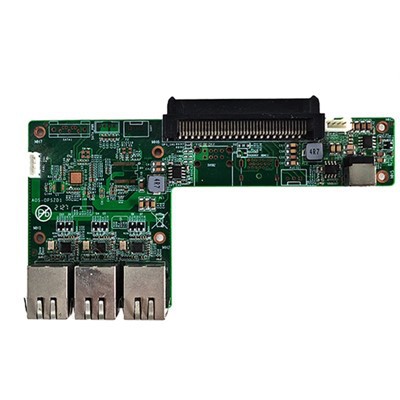
- OPS Adapter Connector Small Board: This small board acts as an adapter connector, enabling seamless integration between the OPS computer and different types of displays. It is compact and easy to install, making it a convenient solution for various display setups.
Conclusion
Changing the screen orientation on the RK3288 Android OPS Computer is a relatively straightforward process, whether you choose to do it through the system settings or by using third - party apps. If you encounter any issues, the troubleshooting steps mentioned above can help you resolve them. Our range of related products, such as the Transfer Panel Addtive OPS Computer, UHD OPS Computer for Meeting Board, and OPS Adapter Connector Small Board, can further enhance the functionality and performance of your RK3288 Android OPS Computer.
If you are interested in purchasing our RK3288 Android OPS Computers or any of our related products, we welcome you to contact us for procurement and negotiation. We are committed to providing high - quality products and excellent customer service.
References
- Android Developers Documentation: Information on Android system settings and features.
- RK3288 Technical Manual: Details about the RK3288 chip and its capabilities.