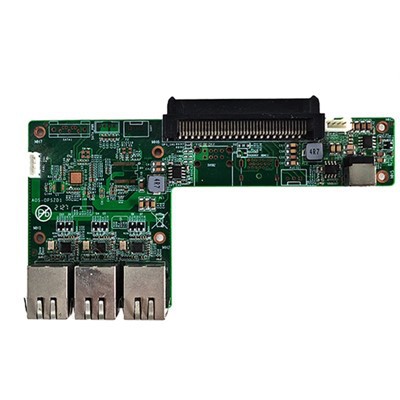
Hey there! I'm a supplier of the RK3399PRO Android OPS Computer. Today, I'll walk you through how to factory reset this nifty device. Whether you're looking to clear out some unwanted data, fix software glitches, or just give your computer a fresh start, a factory reset can be a great solution.
Why You Might Need a Factory Reset
Before we jump into the steps, let's talk about why you'd want to do a factory reset in the first place. Maybe you're planning to sell your RK3399PRO Android OPS Computer and want to make sure all your personal data is erased. Or perhaps you're experiencing some software issues, like apps crashing or the system running slow. A factory reset can often fix these problems by restoring the computer to its original settings.
What You Should Know Before You Start
Factory resetting your RK3399PRO Android OPS Computer will erase all your personal data, including apps, photos, videos, and documents. So, it's super important to back up any important information before you begin. You can use an external storage device, like a USB drive, or cloud storage services to save your data.
Step-by-Step Guide to Factory Reset
Step 1: Access the Settings Menu
First things first, you need to access the settings menu on your RK3399PRO Android OPS Computer. You can usually find the settings icon on the home screen or in the app drawer. Tap on it to open the settings menu.
Step 2: Find the "Backup & Reset" Option
Once you're in the settings menu, scroll down until you find the "Backup & Reset" option. This might be located under the "System" or "General" section, depending on your device's software version.
Step 3: Select "Factory Data Reset"
In the "Backup & Reset" menu, you'll see an option called "Factory Data Reset." Tap on it to start the reset process. You'll be asked to confirm your decision, so make sure you're certain you want to proceed.


Step 4: Enter Your Password (if Required)
If you've set up a password or PIN to unlock your device, you'll need to enter it at this stage. This is an extra security measure to prevent unauthorized resets.
Step 5: Wait for the Reset to Complete
Once you've confirmed your decision and entered your password (if necessary), the computer will start the factory reset process. This can take a few minutes, so be patient and don't turn off the device during this time.
Step 6: Set Up Your Device
After the reset is complete, your RK3399PRO Android OPS Computer will restart. You'll be guided through the initial setup process, where you can choose your language, connect to Wi-Fi, and sign in to your Google account (if applicable).
Other Ways to Factory Reset
In some cases, you might not be able to access the settings menu on your device. Maybe the screen is frozen or the system is unresponsive. If this happens, you can try performing a hard reset using the device's physical buttons.
To do a hard reset, follow these steps:
- Turn off your RK3399PRO Android OPS Computer.
- Press and hold the power button and the volume down button simultaneously.
- Keep holding the buttons until the device vibrates or the recovery menu appears.
- Use the volume buttons to navigate to the "Factory Data Reset" option and press the power button to select it.
- Confirm your decision and wait for the reset to complete.
Troubleshooting Tips
If you encounter any problems during the factory reset process, here are some tips to help you out:
- Check the power supply: Make sure your device is fully charged or connected to a power source. A low battery can cause the reset process to fail.
- Try a different method: If the normal factory reset method isn't working, try doing a hard reset using the physical buttons.
- Contact support: If you're still having trouble, don't hesitate to reach out to our support team. We're here to help you get your device up and running again.
Other OPS Computers We Offer
At our company, we also offer a range of other OPS computers that might suit your needs. Check out our Transfer Panel Addtive OPS Computer, which is perfect for applications that require high-speed data transfer. We also have the H310 8Th 9Th Generation CORE OPS Computer, which offers powerful performance and reliability. And if you're looking for a compact and affordable option, our I3 6100U/I5 6200U/I7 6500U CPU MINI Computer 4GB DDR4 2133MHz Computer is a great choice.
Conclusion
Factory resetting your RK3399PRO Android OPS Computer is a simple process that can help you solve a variety of software issues and protect your personal data. Just remember to back up your important information before you start, and follow the steps carefully. If you have any questions or need further assistance, feel free to contact us. We're always happy to help.
If you're interested in purchasing an RK3399PRO Android OPS Computer or any of our other products, don't hesitate to reach out. We offer competitive prices, high-quality products, and excellent customer service. Let's start a conversation and see how we can meet your computing needs.
References
- Android Developer Documentation
- RK3399PRO Android OPS Computer User Manual