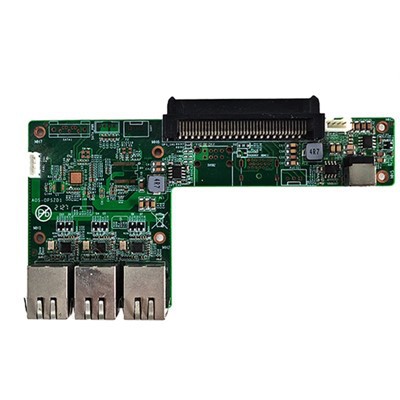
Hey there! As a supplier of the RK3399PRO Android OPS Computer, I've had my fair share of customers asking about how to connect an external hard drive to this nifty device. So, I thought I'd put together this blog post to walk you through the process step by step.
First off, let's talk a bit about the RK3399PRO Android OPS Computer. It's a powerful and versatile piece of tech that's great for a whole bunch of applications, from media centers to industrial control systems. And adding an external hard drive can really boost its storage capacity, allowing you to store more files, movies, music, and whatever else you need.
What You'll Need
Before we get started, you'll need a few things:
- An RK3399PRO Android OPS Computer, of course. If you're in the market for one, we've got you covered!
- An external hard drive. Make sure it's in good working condition and has enough storage space for your needs.
- A compatible USB cable. Most external hard drives come with one, but double - check to be sure.
Step 1: Check the Compatibility
Not all external hard drives are created equal, and some might not work right away with your RK3399PRO Android OPS Computer. First, check the power requirements of your external hard drive. Some larger ones might need an external power supply, while smaller ones can be powered directly through the USB port.
Also, the file system of the hard drive matters. The RK3399PRO Android OPS Computer usually supports common file systems like FAT32 and exFAT. If your hard drive is formatted with a different file system, like NTFS, you might run into some issues. You can format the hard drive to a compatible file system, but be aware that this will erase all the data on it.
Step 2: Prepare the External Hard Drive
If you're using a brand - new external hard drive, you'll need to format it. To do this:
- Connect the external hard drive to a computer (not the RK3399PRO Android OPS Computer yet). You can use a Windows or Mac computer for this.
- On a Windows computer, open "This PC". Right - click on the external hard drive and select "Format". Choose FAT32 or exFAT as the file system and follow the prompts. On a Mac, open "Disk Utility", select the external hard drive, and click "Erase". Choose "MS - DOS (FAT)" or "ExFAT" as the format.
Step 3: Connect the External Hard Drive to the RK3399PRO Android OPS Computer
Once your external hard drive is ready, it's time to connect it to the RK3399PRO Android OPS Computer.
- Locate the USB port on your RK3399PRO Android OPS Computer. It's usually on the back or side of the device.
- Plug one end of the USB cable into the external hard drive and the other end into the USB port on the RK3399PRO Android OPS Computer.
Step 4: Wait for the Device to Recognize the Hard Drive
After connecting the hard drive, give the RK3399PRO Android OPS Computer a few seconds to recognize it. You should see a notification on the screen indicating that a new storage device has been detected.


If the hard drive isn't recognized, try the following:
- Check the USB cable to make sure it's properly connected.
- Try a different USB port on the RK3399PRO Android OPS Computer.
- Make sure the hard drive is turned on and functioning correctly.
Step 5: Access the External Hard Drive
Once the RK3399PRO Android OPS Computer has recognized the external hard drive, you can start using it.
- Open the "File Manager" app on your RK3399PRO Android OPS Computer.
- Look for the external hard drive in the list of storage devices. It should be labeled something like "External Storage" or the name of the hard drive.
- Click on the hard drive to access its contents. You can now copy, move, or delete files just like you would on the internal storage of the RK3399PRO Android OPS Computer.
Other Considerations
- Power Management: If you're not using the external hard drive for a while, it's a good idea to disconnect it to save power. Some external hard drives also have their own power - saving features that you can enable.
- Data Security: Make sure to back up your important data regularly. Even though external hard drives are generally reliable, they can still fail.
Related Products
If you're interested in other types of computers or components, we also offer some great options. For example, the Intel J6412 Processor MINI Computer 2COM Port 6USB Mini Computer is a compact and powerful device with plenty of connectivity options. The 6GEN Core Skylake - U Fanless Aluminum Chassis Mini Computer is another great choice, especially if you're looking for a fanless design for quiet operation. And if you're into building your own systems, the Standard ATX Industrial Large Motherboard 2 DDR4 ATX Motherboards provides a solid foundation.
Conclusion
Connecting an external hard drive to your RK3399PRO Android OPS Computer is a pretty straightforward process. Just follow the steps I've outlined above, and you'll be able to expand your storage capacity in no time.
If you have any questions about the RK3399PRO Android OPS Computer or any of our other products, or if you're interested in making a purchase, don't hesitate to reach out. We're here to help you find the right solutions for your needs.
References
- General knowledge of Android device connectivity and external hard drive usage.
- Manufacturer's documentation for the RK3399PRO Android OPS Computer.