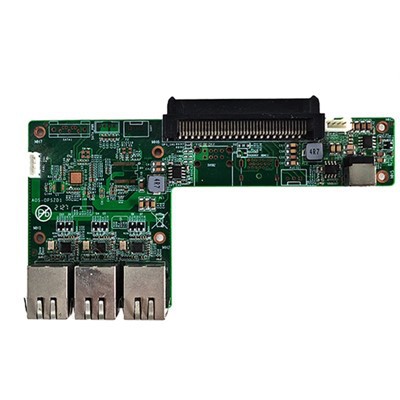
As a supplier of I3 OPS Computers, I understand the frustration that comes with accidentally deleting important files. Whether it's a crucial work document, precious family photos, or essential business data, the loss of files can be a significant setback. However, there's no need to panic just yet. In this blog post, I'll share some effective methods to recover deleted files on an I3 OPS Computer.
Understanding the Basics of File Deletion
Before diving into the recovery methods, it's important to understand how file deletion works on a computer. When you delete a file, it's not immediately removed from the hard drive. Instead, the operating system marks the space occupied by the file as available for reuse. The actual data remains on the drive until it's overwritten by new data. This means that there's a chance to recover the deleted file as long as it hasn't been overwritten.
Method 1: Check the Recycle Bin
The first and simplest method to recover deleted files is to check the Recycle Bin. When you delete a file on an I3 OPS Computer, it's usually moved to the Recycle Bin. You can easily restore the file from the Recycle Bin if you realize your mistake soon after deletion.
To check the Recycle Bin, follow these steps:
- Locate the Recycle Bin icon on your desktop. It looks like a trash can.
- Double-click on the Recycle Bin icon to open it.
- Look for the deleted file in the Recycle Bin. If you find it, right-click on the file and select "Restore." The file will be restored to its original location.
Method 2: Use File History (Windows)
If you're using a Windows operating system on your I3 OPS Computer, you can use the File History feature to recover deleted files. File History is a built-in backup and recovery tool that automatically backs up your files to an external drive or a network location.
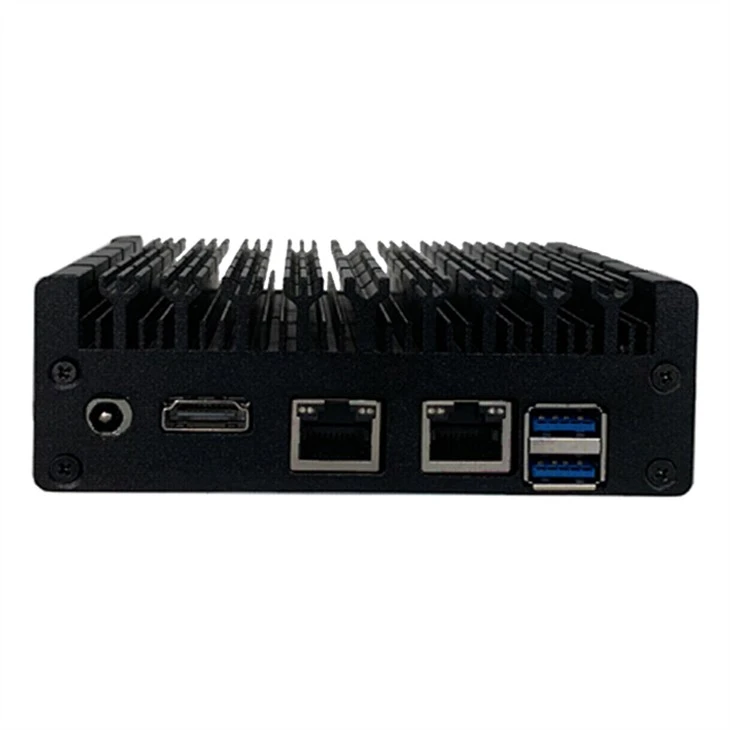

To use File History to recover deleted files, follow these steps:
- Open the Control Panel on your computer. You can do this by pressing the Windows key + X and selecting "Control Panel."
- In the Control Panel, search for "File History" and click on it.
- Click on "Restore personal files" in the File History window.
- Use the arrows to navigate through the backups and find the deleted file.
- Select the file you want to recover and click on "Restore." The file will be restored to its original location.
Method 3: Use Data Recovery Software
If the above methods don't work, you can use data recovery software to recover deleted files on your I3 OPS Computer. There are many data recovery software programs available on the market, both free and paid. Some popular data recovery software programs include Recuva, EaseUS Data Recovery Wizard, and DiskDrill.
Before using data recovery software, it's important to note that you should stop using the computer immediately to avoid overwriting the deleted files. Also, make sure to install the data recovery software on a different drive or external storage device to prevent further data loss.
To use data recovery software to recover deleted files, follow these steps:
- Download and install the data recovery software on your computer.
- Launch the data recovery software and select the drive where the deleted files were located.
- Click on the "Scan" button to start the scanning process. The software will scan the drive for deleted files.
- Once the scanning is complete, the software will display a list of recoverable files. Select the files you want to recover and click on the "Recover" button.
- Choose a location to save the recovered files. Make sure to save the files to a different drive or external storage device to avoid overwriting the original files.
Method 4: Seek Professional Data Recovery Services
If all else fails, you can seek professional data recovery services. Professional data recovery companies have the expertise and specialized equipment to recover data from damaged or corrupted hard drives. However, professional data recovery services can be expensive, and there's no guarantee that they'll be able to recover all of your data.
Before choosing a professional data recovery service, make sure to do your research and choose a reputable company. You can read reviews and testimonials from other customers to get an idea of the company's reputation.
Preventing File Loss in the Future
While it's possible to recover deleted files on an I3 OPS Computer, it's always better to prevent file loss in the first place. Here are some tips to help you prevent file loss:
- Regularly back up your files to an external drive or a cloud storage service. This will ensure that you have a copy of your important files in case of data loss.
- Use a reliable antivirus software to protect your computer from viruses and malware. Viruses and malware can cause data loss by corrupting or deleting your files.
- Be careful when deleting files. Double-check before deleting a file to make sure you really want to delete it.
- Avoid using your computer when it's running low on disk space. Running out of disk space can cause your computer to crash and result in data loss.
Conclusion
Losing important files can be a stressful experience, but there are several methods to recover deleted files on an I3 OPS Computer. By following the methods outlined in this blog post, you can increase your chances of recovering your deleted files. Remember to regularly back up your files to prevent data loss in the future.
If you're interested in purchasing an I3 OPS Computer or other related products, we offer a wide range of high-quality options. For example, our 6GEN Core Skylake-U Fanless Aluminum Chassis Mini Computer is a great choice for those looking for a compact and efficient computer. We also have the Intel 4-5 Generation CPU 3.5-inch Industrial Motherboard and the Ops I5 Pc Module available.
If you have any questions or would like to discuss your specific needs, please feel free to reach out to us. We're here to help you find the perfect solution for your computing requirements.
References
- Microsoft Support. (n.d.). Recover deleted files from the Recycle Bin. Retrieved from https://support.microsoft.com/en-us/windows/recover-deleted-files-from-the-recycle-bin-92326cff-9b02-4ee2-93ac-3d48a45df317
- Microsoft Support. (n.d.). Restore files with File History. Retrieved from https://support.microsoft.com/en-us/windows/restore-files-with-file-history-7e2fe6e1-4173-4115-b170-6ee4081c6090
- EaseUS. (n.d.). How to Recover Deleted Files on Windows 10/11/8/7. Retrieved from https://www.easeus.com/data-recovery-software/how-to-recover-deleted-files.htm