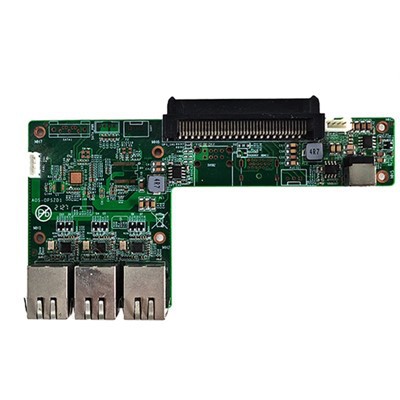
Hey there! As a supplier of UHD OPS Computer For Meeting Board, I often get asked about how to connect external speakers to these devices. It's a common need, especially when you're using the meeting board for presentations or video conferences. In this blog, I'll walk you through the steps to connect external speakers to your UHD OPS Computer For Meeting Board.
Why Connect External Speakers?
First off, let's talk about why you might want to connect external speakers. The built - in speakers on many meeting boards can be a bit lacking in terms of sound quality and volume. External speakers can provide a much richer and louder audio experience, which is crucial for clear communication during meetings. Whether you're playing a video, presenting a slide show, or having a virtual meeting, good audio is key.
Types of External Speakers
There are different types of external speakers you can choose from. You've got powered speakers, which have their own built - in amplifier, and passive speakers, which require an external amplifier. Powered speakers are usually easier to set up and are a great choice for most meeting room setups. They come in various sizes and configurations, from small desktop speakers to larger floor - standing ones.
Steps to Connect External Speakers
Step 1: Check Your UHD OPS Computer's Audio Output
The first thing you need to do is find out what kind of audio output your UHD OPS Computer For Meeting Board has. Most UHD OPS computers have a standard 3.5mm audio jack, which is the most common way to connect speakers. Some may also have an HDMI output that can carry audio, or a digital audio output like S/PDIF.
If your computer has a 3.5mm audio jack, it's pretty straightforward. You just need to get a 3.5mm audio cable. Make sure the cable is long enough to reach from your computer to the speakers.
Step 2: Choose the Right Speaker Connection
Once you've identified the audio output on your computer, you need to match it with the input on your speakers. If you're using powered speakers with a 3.5mm input, you can simply plug one end of the 3.5mm cable into the computer's audio output and the other end into the speaker's input.
If your speakers have an RCA input, you'll need an adapter. You can get a 3.5mm to RCA adapter, which will allow you to connect your computer to the speakers.
Step 3: Power On the Speakers
After connecting the speakers to your computer, make sure to power on the speakers. Most powered speakers have a power switch on the back or side. Flip the switch to the "On" position, and the speakers should start up.
Step 4: Adjust the Volume and Audio Settings
Once the speakers are powered on, you can adjust the volume on the speakers themselves. Most speakers have a volume knob or a control panel where you can increase or decrease the volume.
You may also need to adjust the audio settings on your UHD OPS Computer. On most operating systems, you can access the audio settings through the control panel or system preferences. Make sure the correct audio output device is selected. You can usually test the audio by playing a sample sound or a short video.
Compatibility Considerations
It's important to make sure that your external speakers are compatible with your UHD OPS Computer. Some older speakers may not work well with newer computers, especially if they have different audio standards.
If you're using a Multi - LAN port OPS computer, which offers more connectivity options, you might have additional audio output choices. This can be great for connecting multiple speakers or more advanced audio systems.
Another option is the HM170 Core i5 - 6300HQ OPS - C pc. It has a powerful processor and can handle high - quality audio output, making it a good choice for meeting board setups.
Using Adapter Cards
In some cases, you may need to use an adapter card to connect your speakers. For example, the AOS 2U PCIe X8 to X16 90° Forward Riser Card can be used to expand the connectivity options of your UHD OPS Computer. This card can provide additional audio outputs or other interfaces, which can be useful for more complex audio setups.
Troubleshooting
If you're having trouble getting the speakers to work, there are a few things you can check. First, make sure all the cables are properly plugged in. Sometimes, a loose connection can cause audio issues.


Check the volume settings on both the speakers and the computer. Make sure the volume is turned up and not muted.
If you're using an adapter, make sure it's working properly. You can try using a different adapter or cable to see if that solves the problem.
Conclusion
Connecting external speakers to your UHD OPS Computer For Meeting Board is a relatively simple process. By following the steps outlined above, you can enjoy better audio quality during your meetings. Whether you're using a small desktop speaker or a more elaborate audio system, the right setup can make a big difference.
If you're interested in purchasing a UHD OPS Computer For Meeting Board or have any questions about connecting external speakers, feel free to reach out. We're here to help you get the best audio experience for your meeting room.
References
- General knowledge of audio systems and computer hardware
- Manufacturer's documentation for UHD OPS Computers and external speakers