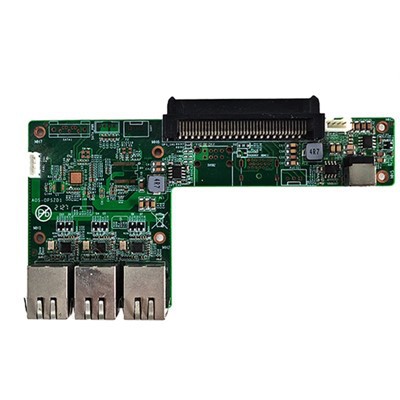
As a supplier of Atom Z8350 Android Windows OPS Computers, I often receive inquiries from customers about various technical issues, one of the most common being how to factory reset their devices. A factory reset can be a useful solution when your computer is experiencing performance issues, has been infected with malware, or you simply want to start fresh. In this blog post, I'll guide you through the process of factory resetting an Atom Z8350 Android OPS computer.
Prerequisites
Before you begin the factory reset process, there are a few things you need to do:


- Backup your data: A factory reset will erase all the data on your computer, including personal files, photos, videos, and installed applications. Make sure to back up any important data to an external storage device or a cloud service.
- Charge your device: Ensure that your computer is fully charged or connected to a power source. A sudden power loss during the reset process can cause serious issues.
- Check for software updates: It's a good idea to update your device to the latest version of the Android operating system before performing a factory reset. This can help ensure that the reset process goes smoothly.
Step-by-Step Guide to Factory Reset
The process of factory resetting an Atom Z8350 Android OPS computer may vary slightly depending on the specific model and the version of the Android operating system installed. However, the general steps are as follows:
Step 1: Access the Settings Menu
- Turn on your Atom Z8350 Android OPS computer.
- Swipe down from the top of the screen to open the notification panel, and then tap the "Settings" icon. Alternatively, you can find the "Settings" app in the app drawer.
Step 2: Navigate to the Backup & Reset Option
- Scroll down the settings menu and look for the "Backup & Reset" or "Reset" option. The exact location of this option may vary depending on your device.
- Once you find the option, tap on it to open the backup and reset settings.
Step 3: Select Factory Data Reset
- In the backup and reset settings, you should see an option called "Factory data reset" or "Erase all data (factory reset)". Tap on this option.
- You may be prompted to enter your device password or PIN if you have one set up. Enter the password and tap "OK".
Step 4: Confirm the Reset
- A confirmation screen will appear, warning you that all your data will be erased. Read the warning carefully, and if you're sure you want to proceed, tap "Reset phone" or "Erase everything".
- Your device will now begin the factory reset process. This may take several minutes, during which your device will restart multiple times.
Step 5: Set Up Your Device
- Once the reset process is complete, your device will boot up to the initial setup screen. Follow the on-screen instructions to set up your device, including selecting your language, connecting to a Wi-Fi network, and signing in to your Google account.
Troubleshooting
If you encounter any issues during the factory reset process, here are some common problems and their solutions:
- Device won't boot up: If your device fails to boot up after the reset, try holding down the power button for 10-15 seconds to force a restart. If the problem persists, you may need to perform a hard reset or contact technical support.
- Reset process takes too long: In some cases, the factory reset process may take longer than expected. This can be due to a large amount of data on your device or a slow storage drive. Be patient and wait for the process to complete.
- Data not erased: If you find that some data is still present on your device after the reset, try performing the reset again. Make sure to follow all the steps carefully and ensure that your device is fully charged.
Other Products in Our Range
At our company, we offer a wide range of OPS computers to meet the diverse needs of our customers. In addition to the Atom Z8350 Android Windows OPS Computers, we also have the following products:
- IntelJ1900//J2900 CPU Small Computer 6 USB MINI Computers: These small and powerful computers are ideal for various applications, including digital signage, kiosks, and industrial control systems.
- Ops I5 Pc Module: Our Ops I5 PC Module offers high-performance computing capabilities, making it suitable for demanding tasks such as video editing, gaming, and business applications.
- I3 6100U/I5 6200U/I7 6500U CPU MINI Computer 4GB DDR4 2133MHz Computer: These mini computers are designed for users who need a compact and efficient computing solution. They are perfect for home use, office work, and education.
Contact Us for Purchase and Negotiation
If you're interested in purchasing any of our OPS computers or have any questions about our products, please feel free to contact us. We have a team of experienced sales representatives who can provide you with detailed information and help you choose the right product for your needs. Whether you're a small business owner, a large corporation, or an individual consumer, we're committed to providing you with high-quality products and excellent customer service.
References
- Android Developers. (n.d.). Factory reset your device. Retrieved from [Google's official Android support website]
- Manufacturer's user manual for Atom Z8350 Android OPS Computers.