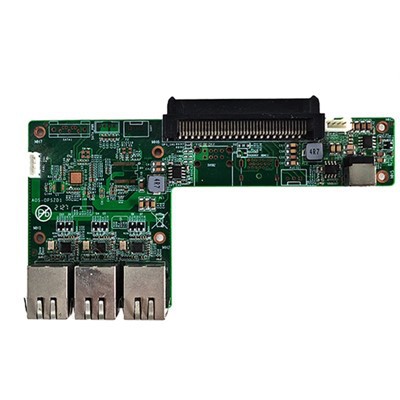
Hey there! As a supplier of Atom Z8350 Android Windows OPS Computers, I've had my fair share of experiences with these nifty little machines. The Atom Z8350 OPS computer running Windows can be a real workhorse, but sometimes it might need a bit of a performance boost. So, let's dive into how you can optimize its performance.
1. Keep Your OS Up - to - Date
First things first, make sure your Windows operating system is up - to - date. Microsoft regularly releases updates that not only bring new features but also fix security vulnerabilities and improve system stability. These updates can have a significant impact on the performance of your Atom Z8350 OPS computer.
To check for updates, just go to the "Settings" app on your Windows machine, then click on "Update & Security." From there, click "Check for updates." If there are any available, let your computer download and install them. It might take a bit of time, but it's definitely worth it.
2. Manage Startup Programs
A lot of programs tend to start automatically when you boot up your computer. While some of them are necessary, others just eat up system resources and slow down your boot time. You can manage these startup programs through the Task Manager.
Press "Ctrl + Shift + Esc" to open the Task Manager. Then, go to the "Startup" tab. Here, you'll see a list of all the programs that start when your computer boots. You can disable the ones you don't need by right - clicking on them and selecting "Disable." This will free up some memory and processing power, making your computer boot faster and run more smoothly.
3. Optimize Your Storage
The storage on your Atom Z8350 OPS computer plays a crucial role in its performance. Over time, your hard drive can get cluttered with temporary files, old system files, and other junk. You can use the built - in Disk Cleanup tool in Windows to get rid of these unnecessary files.
To access Disk Cleanup, search for it in the Start menu. Select the drive you want to clean (usually the C: drive) and click "OK." Windows will then analyze the drive and show you a list of files you can delete. Check the boxes next to the file types you want to remove, like Temporary Internet Files, Recycle Bin, and System Restore points, and then click "OK."
If you have a lot of large files or files you don't use often, you might also consider moving them to an external hard drive. This will free up space on your computer's internal storage and improve its performance.
4. Upgrade Your RAM
The Atom Z8350 OPS computer usually comes with a certain amount of RAM. If you find that your computer is running slow, especially when you're running multiple programs at the same time, you might want to consider upgrading your RAM.
Adding more RAM allows your computer to handle more tasks simultaneously without slowing down. You can check your computer's current RAM amount by right - clicking on "This PC" and selecting "Properties." If you're not sure how to upgrade the RAM yourself, you can take your computer to a professional technician.
5. Use Lightweight Software
Since the Atom Z8350 is not the most powerful processor out there, it's a good idea to use lightweight software. Instead of resource - hungry applications, look for lighter alternatives. For example, if you need a web browser, you might want to try Firefox or Brave instead of Chrome, which can be quite memory - intensive.
When it comes to office software, you can use free and lightweight options like LibreOffice instead of Microsoft Office. These lightweight applications will put less strain on your computer's resources and make it run more efficiently.
6. Keep Your Drivers Updated
Outdated drivers can cause all sorts of performance issues. Your computer's hardware, like the graphics card, network adapter, and sound card, rely on drivers to communicate with the operating system. If these drivers are outdated, your computer might not be able to use the hardware to its full potential.
You can update your drivers through the Device Manager. Press "Win + X" and select "Device Manager." Here, you'll see a list of all your computer's hardware devices. Expand the categories, right - click on a device, and select "Update driver." You can choose to search automatically for updated driver software.
7. Adjust Visual Effects
Windows has a bunch of visual effects that make your desktop look cool, but they also consume system resources. You can adjust these visual effects to strike a balance between looks and performance.
Right - click on "This PC" and select "Properties." Then, click on "Advanced system settings." In the System Properties window, go to the "Advanced" tab, and under "Performance," click "Settings." Here, you can choose to let Windows automatically adjust the settings for best performance, or you can manually select the visual effects you want to turn off. For example, turning off effects like "Animate windows when minimizing and maximizing" can save some resources.
8. Consider Hardware Upgrades
If you've tried all the software optimization methods and still find that your Atom Z8350 OPS computer is not performing as well as you'd like, you might want to consider some hardware upgrades. You could upgrade to a faster solid - state drive (SSD) instead of a traditional hard drive. SSDs are much faster and can significantly improve your computer's boot time and overall performance.
Another option is to upgrade the processor, although this is a more complex and expensive upgrade. You need to make sure that the new processor is compatible with your motherboard.


Related Products
If you're in the market for other types of OPS computers, we also offer some great options. Check out our H310 8Th 9Th Generation CORE OPS Computer, which is perfect for those who need more processing power. We also have the Intel 4 - 5 Generation CPU 3.5 - inch Industrial Motherboard for industrial applications. And for meeting boards, our UHD OPS Computer for Meeting Board is a great choice.
Conclusion
Optimizing the performance of your Atom Z8350 OPS computer running Windows is all about finding the right balance between software and hardware. By following these tips, you can make your computer run faster, boot up quicker, and handle tasks more efficiently.
If you're interested in purchasing an Atom Z8350 Android Windows OPS Computer or any of our other products, feel free to reach out to us for a procurement discussion. We're always here to help you find the best solution for your needs.
References
- Microsoft Windows Support Documentation
- Various online tech forums and blogs