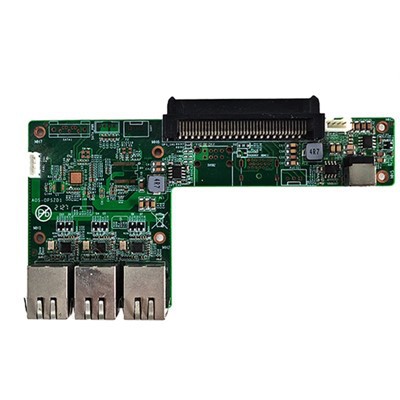
Hey there! I'm from a supplier of RK3399PRO Android OPS Computers. If you're into this kind of computer, you might be interested in setting up a VPN on it. A VPN can enhance your online security, bypass geo - restrictions, and give you a more private browsing experience. So, let's dive into how to set up a VPN on the RK3399PRO Android OPS Computer.
Why You Might Want a VPN
First off, why would you want a VPN on your RK3399PRO Android OPS Computer? Well, if you're accessing sensitive information, a VPN encrypts your data, making it harder for hackers to steal. Also, if you're traveling or in a region where certain websites are blocked, a VPN can help you access those sites by masking your IP address.
Prerequisites
Before you start setting up a VPN, there are a few things you'll need. You'll need to choose a reliable VPN service. There are tons of them out there, but make sure to pick one that has good reviews, offers strong encryption, and has servers in the locations you want to access. You'll also need to have administrative access to your RK3399PRO Android OPS Computer. This way, you can install and configure the VPN software without any issues.
Step 1: Choose a VPN Service
As I mentioned, there are many VPN services available. Some popular ones include ExpressVPN, NordVPN, and Surfshark. These services offer different features like different server locations, various levels of encryption, and different pricing plans. Do some research and pick the one that suits your needs.
Step 2: Download the VPN App
Once you've chosen a VPN service, head over to their official website from your RK3399PRO Android OPS Computer. Most VPN services have apps available for Android. Download the app to your computer. Some VPNs might also have APK files that you can download and install manually. If you go the APK route, make sure to download it from the official source to avoid any security risks.
Step 3: Install the VPN App
After downloading the app, locate the file on your computer. If you downloaded it from the Android app store, it should start installing automatically. If it's an APK file, you'll need to give your computer permission to install apps from unknown sources. To do this, go to your device's settings, then to "Security" or "Privacy", and enable the "Unknown sources" option. Then, click on the APK file to start the installation process. Follow the on - screen instructions to complete the installation.
Step 4: Sign Up or Log In
Once the app is installed, open it. If you're a new user, you'll need to sign up for an account. This usually involves providing an email address and choosing a password. If you already have an account, just log in using your credentials.
Step 5: Configure the VPN Settings
After logging in, you'll need to configure the VPN settings. Most VPN apps have a simple interface. You can usually choose the server location you want to connect to. For example, if you want to access US - based content, select a US server. You can also choose the type of encryption you want to use. Stronger encryption means better security but might slow down your connection speed a bit.


Step 6: Connect to the VPN
Once you've configured the settings, click the "Connect" button in the VPN app. The app will then establish a connection to the selected server. You'll see a notification when the connection is successful. Now you can start browsing the internet with the added security and privacy of the VPN.
Troubleshooting
Sometimes, you might run into issues when setting up or using the VPN. If you can't connect to the VPN, check your internet connection first. Make sure your RK3399PRO Android OPS Computer is connected to the internet properly. If the problem persists, try restarting the VPN app and your computer. You can also contact the VPN service's customer support for help.
Other Options for VPN Setup
If you don't want to use a VPN app, you can also set up a VPN manually. This involves configuring the VPN settings in your device's network settings. However, this method is a bit more technical and is usually recommended for more experienced users.
Related Products
If you're interested in other types of computers, we also offer some great options. Check out our ARM Chip Industrial Iot Gateway Internet Of Things Gateway Computer Embedded Computer, 6GEN Core Skylake - U Fanless Aluminum Chassis Mini Computer, and H310 8Th 9Th Generation CORE OPS Computer. These computers have different features and are suitable for various applications.
Conclusion
Setting up a VPN on your RK3399PRO Android OPS Computer is not that difficult. By following the steps I've outlined above, you can enjoy a more secure and private online experience. If you have any questions about setting up the VPN or about our RK3399PRO Android OPS Computers, don't hesitate to reach out. We're here to help you with your procurement needs and answer any of your questions. Whether you're a small business or a large enterprise, we can provide the right solutions for you. Contact us today to start the procurement and negotiation process!
References
- General knowledge about VPN setup on Android devices
- Experience with RK3399PRO Android OPS Computers as a supplier