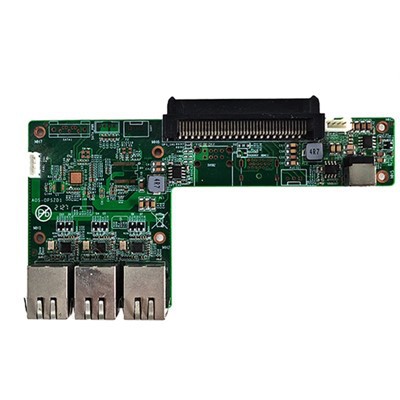
Troubleshooting common problems with a 4K OPS (Open Pluggable Specification) computer for touch panels can be a daunting task, especially if you're not familiar with the technology. As a supplier of 4K OPS computers for touch panels, I've encountered a wide range of issues over the years. In this blog post, I'll share some of the most common problems and provide step-by-step solutions to help you get your system up and running smoothly.
1. No Power or System Not Booting
One of the most frustrating issues you might face is when your 4K OPS computer for touch panel doesn't power on or fails to boot. Here are some steps to troubleshoot this problem:
Check the Power Supply
- Verify the Power Cord: Ensure that the power cord is securely plugged into both the OPS computer and the power outlet. Sometimes, a loose connection can prevent the device from receiving power.
- Test the Outlet: Try plugging another device into the same power outlet to confirm that it's working. If the outlet is faulty, you may need to use a different one or have an electrician repair it.
Inspect the Power Button
- Press and Hold: Sometimes, a simple long press of the power button can resolve the issue. Press and hold the power button for at least 10 seconds to see if the system powers on.
- Check for Physical Damage: Examine the power button for any signs of physical damage, such as cracks or debris. If the button is damaged, it may need to be replaced.
BIOS/UEFI Settings
- Reset BIOS/UEFI: If the system is not booting properly, it could be due to incorrect BIOS/UEFI settings. You can try resetting the BIOS/UEFI to its default settings. Refer to your device's manual for instructions on how to do this.
2. Touch Panel Not Responding
A non - responsive touch panel can significantly affect the usability of your 4K OPS computer. Here's how you can troubleshoot this problem:
Check the Connections
- Cable Inspection: Make sure that all the cables connecting the touch panel to the OPS computer are securely plugged in. Loose or damaged cables can cause communication issues between the two components.
- Reconnect the Cables: Try disconnecting and then reconnecting the cables to ensure a proper connection.
Calibrate the Touch Panel
- Use the Calibration Utility: Most touch panels come with a calibration utility. Access this utility through the operating system's control panel or settings menu. Follow the on - screen instructions to calibrate the touch panel.
- Restart the System: Sometimes, a simple system restart can resolve minor calibration issues. Restart the 4K OPS computer and check if the touch panel is working properly.
Software and Driver Issues
- Update the Drivers: Outdated or corrupted touch panel drivers can cause the touch panel to stop responding. Visit the manufacturer's website to download and install the latest drivers for your touch panel.
- Check for Software Conflicts: Some software applications may conflict with the touch panel drivers. Try uninstalling any recently installed software to see if it resolves the issue.
3. Poor Image Quality or Resolution Issues
If you're experiencing poor image quality or resolution problems with your 4K OPS computer, here are some steps to take:


Check the Display Settings
- Resolution Adjustment: Make sure that the display resolution is set to the native resolution of your touch panel. You can adjust the resolution through the operating system's display settings.
- Refresh Rate: Incorrect refresh rates can also cause image quality issues. Set the refresh rate to the recommended value for your touch panel.
Cable Quality
- Use High - Quality Cables: Low - quality cables can result in signal loss and poor image quality. Consider using high - quality HDMI or DisplayPort cables to ensure a stable connection.
- Inspect the Cables: Check the cables for any signs of damage, such as cuts or frayed wires. Replace the cables if necessary.
Graphics Card Drivers
- Update the Graphics Card Drivers: Outdated graphics card drivers can cause resolution and image quality issues. Visit the graphics card manufacturer's website to download and install the latest drivers.
4. Overheating
Overheating can lead to system instability and even hardware damage. Here's how you can troubleshoot overheating issues:
Check the Cooling System
- Clean the Fans: Dust and debris can accumulate on the fans, reducing their efficiency. Use compressed air to clean the fans and vents of the 4K OPS computer.
- Ensure Proper Ventilation: Make sure that the OPS computer has enough space around it for proper ventilation. Avoid placing it in enclosed spaces or on soft surfaces that can block the vents.
Monitor the Temperature
- Use Temperature Monitoring Software: Install temperature monitoring software to keep track of the system's temperature. If the temperature is consistently high, it may indicate a more serious problem.
Check for Hardware Issues
- Faulty Cooling Components: A faulty fan or heat sink can cause overheating. If you suspect that a cooling component is faulty, it may need to be replaced.
5. Connectivity Issues
Connectivity issues can prevent your 4K OPS computer from communicating with other devices. Here are some solutions:
Wi - Fi Connectivity
- Check the Wi - Fi Settings: Make sure that Wi - Fi is enabled on your 4K OPS computer and that you're connected to the correct network. Enter the correct Wi - Fi password if prompted.
- Reset the Router: Sometimes, a simple router reset can resolve Wi - Fi connectivity issues. Unplug the router, wait for a few seconds, and then plug it back in.
Ethernet Connectivity
- Check the Ethernet Cable: Ensure that the Ethernet cable is securely plugged into both the OPS computer and the router or switch. Try using a different Ethernet cable to see if it resolves the issue.
- Restart the Network Devices: Restart the OPS computer, router, and any other network devices to refresh the connection.
Product Recommendations
If you're looking for reliable 4K OPS computers for touch panels, we offer a range of high - quality products. Our RK3399A Touch Panel Android Motherboard is a powerful option with excellent performance and compatibility. For those who prefer an Android - based system, our Android box PC provides a seamless user experience. And if you need a more robust solution, our Celeron J5005 J4105 J4005 OPS Computer offers great processing power.
Conclusion
Troubleshooting common problems with a 4K OPS computer for touch panels requires a systematic approach. By following the steps outlined in this blog post, you should be able to resolve most of the issues you encounter. If you're still having problems after trying these solutions, don't hesitate to contact us. We're here to help you ensure that your 4K OPS computer is working at its best. Whether you're looking to purchase a new device or need technical support, we're ready to assist you. Reach out to us to start a procurement discussion and find the best solution for your needs.
References
- Manufacturer's manuals for 4K OPS computers and touch panels
- Online forums and communities for computer troubleshooting
- Technical support resources from hardware and software manufacturers