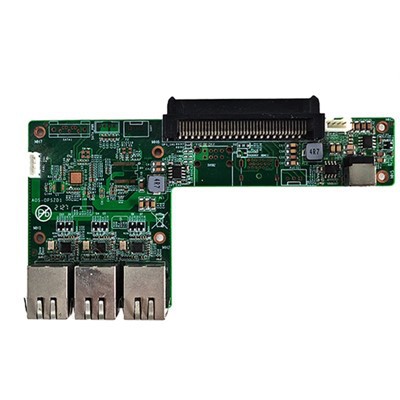
In the modern digital era, the OPS (Open Pluggable Specification) computer has emerged as a versatile and powerful device, widely used in various fields such as education, business presentations, and digital signage. One of the essential features of an OPS computer is its ability to utilize a microphone, which can greatly enhance the user experience, especially in scenarios where voice input, communication, or audio recording is required. As an OPS computer supplier, I am here to guide you through the process of using the microphone on an OPS computer effectively.
Understanding the Basics of Microphone Connection
Before we delve into the detailed steps of using the microphone, it is crucial to understand how to connect it to your OPS computer. Most OPS computers are equipped with standard audio input jacks, typically a 3.5mm audio jack, which is compatible with a wide range of microphones. To connect your microphone, simply plug the microphone's audio cable into the corresponding audio input jack on the OPS computer.
If you are using a USB microphone, the process is even simpler. Just plug the USB connector of the microphone into one of the available USB ports on the OPS computer. USB microphones are becoming increasingly popular due to their plug-and-play functionality and high-quality audio capture capabilities.
Configuring the Microphone Settings
Once the microphone is connected, the next step is to configure the microphone settings on your OPS computer. Here's how you can do it:
Windows Operating System
- Access the Sound Settings: Click on the Start button and select "Settings." Then, click on "System" and select "Sound" from the left sidebar.
- Select the Microphone: Under the "Input" section, you will see a list of available audio input devices. Select the microphone you have connected to your OPS computer.
- Adjust the Microphone Volume: You can adjust the microphone volume by moving the slider under the selected microphone. You can also test the microphone by speaking into it and checking the audio level indicator.
- Configure Additional Settings: Depending on your needs, you may want to configure additional settings such as microphone boost, noise cancellation, and audio enhancements. To do this, click on the "Device properties" link next to the selected microphone and make the necessary adjustments.
macOS Operating System
- Access the Sound Preferences: Click on the Apple menu and select "System Preferences." Then, click on "Sound."
- Select the Microphone: In the "Input" tab, select the microphone you have connected to your OPS computer.
- Adjust the Microphone Volume: You can adjust the microphone volume by moving the slider under the selected microphone. You can also test the microphone by speaking into it and checking the audio level indicator.
- Configure Additional Settings: Similar to Windows, you can configure additional settings such as input volume limit and audio enhancements. To do this, click on the "Options" button next to the selected microphone and make the necessary adjustments.
Using the Microphone in Different Applications
Now that your microphone is connected and configured, you can start using it in various applications. Here are some common scenarios:
Voice Communication
If you need to use the microphone for voice communication, such as making a voice call or participating in a video conference, you can use applications like Skype, Zoom, or Microsoft Teams. Simply open the application, go to the settings, and select the microphone you have configured on your OPS computer. You can then start speaking and communicating with others.
Audio Recording
If you want to record audio using the microphone, you can use applications like Audacity or Windows Sound Recorder. Open the application, select the microphone as the audio input device, and start recording. You can then save the recorded audio file for later use.
Voice Recognition
Many OPS computers support voice recognition technology, which allows you to control the computer using your voice. To use voice recognition, you need to enable it in the system settings and train the system to recognize your voice. Once enabled, you can use voice commands to perform various tasks such as opening applications, searching the web, and sending emails.


Troubleshooting Common Microphone Issues
Sometimes, you may encounter issues with the microphone on your OPS computer. Here are some common issues and their solutions:
No Sound from the Microphone
- Check the Connection: Make sure the microphone is properly connected to the OPS computer. Try unplugging and plugging it back in to ensure a secure connection.
- Check the Volume Settings: Make sure the microphone volume is turned up and not muted. You can also try adjusting the volume settings in the system settings and the application you are using.
- Update the Drivers: Outdated or corrupted drivers can cause microphone issues. You can update the microphone drivers by going to the device manager, right-clicking on the microphone device, and selecting "Update driver."
Poor Audio Quality
- Check the Microphone Placement: Make sure the microphone is placed in a suitable location, away from sources of noise and interference. You can also try using a microphone with a built-in noise cancellation feature.
- Adjust the Audio Settings: You can try adjusting the audio settings such as microphone boost, noise cancellation, and audio enhancements to improve the audio quality.
- Clean the Microphone: Dust and debris can accumulate on the microphone, affecting its performance. You can clean the microphone by using a soft brush or compressed air.
Conclusion
Using the microphone on an OPS computer is a straightforward process that can greatly enhance your user experience. By following the steps outlined in this blog post, you can easily connect, configure, and use the microphone in various applications. If you encounter any issues, you can refer to the troubleshooting section for solutions.
As an OPS computer supplier, we offer a wide range of high-quality OPS computers, including the IntelJ1900//J2900 CPU Small Computer 6 USB MINI Computers, Ops I5 Pc Module, and Transfer Panel Addtive OPS Computer. Our products are designed to meet the diverse needs of our customers and provide excellent performance and reliability.
If you are interested in purchasing an OPS computer or have any questions about using the microphone or other features, please feel free to contact us for procurement and negotiation. We look forward to serving you and helping you find the perfect OPS computer solution for your needs.
References
- Microsoft. (n.d.). Change your audio settings in Windows. Retrieved from https://support.microsoft.com/en-us/windows/change-your-audio-settings-in-windows-664f1e28-f84d-2867-7a77-6608d9d8e7d4
- Apple. (n.d.). Set up and use a microphone on Mac. Retrieved from https://support.apple.com/en-us/HT201795
- Audacity Team. (n.d.). Audacity: Free, open source, cross-platform audio software. Retrieved from https://www.audacityteam.org/