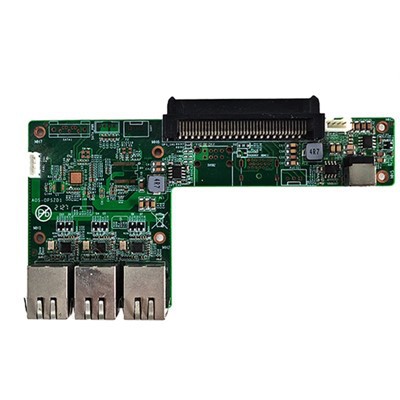
Hey there! I'm a supplier of OPS (Open Pluggable Specification) computers, and I'm here to chat about the installation requirements for these nifty devices. Whether you're a tech-savvy individual or a business looking to upgrade your systems, understanding these requirements is crucial for a smooth setup.
First off, let's talk about the physical space. OPS computers are designed to be compact and pluggable, but they still need a bit of room to breathe. You'll need to have an OPS slot available on your display device. Most modern digital signage displays, interactive whiteboards, and some monitors come equipped with OPS slots. These slots are standardized, which is a huge plus as it ensures compatibility across different brands and models.
When it comes to power, OPS computers typically draw power directly from the display device through the OPS slot. However, it's important to check the power requirements of your specific OPS computer model. Some high - performance OPS units may need additional power sources, especially if they're running resource - intensive applications. Make sure your display can provide enough power to keep the OPS computer running smoothly.
Now, let's dive into the hardware side of things. The motherboard is the heart of any computer, and OPS computers are no exception. We offer a variety of motherboards to suit different needs. For example, the Standard ATX Industrial Large Motherboard 2 DDR4 ATX Motherboards is a great option if you need a robust and expandable motherboard. It has support for DDR4 memory, which means faster data transfer and better overall performance.
If you're looking for something more compact, the Intel 4 - 5 Generation CPU 3.5 - inch Industrial Motherboard might be the way to go. This motherboard is designed to fit in smaller spaces while still offering decent processing power. It's powered by Intel 4 - 5 generation CPUs, which are known for their energy efficiency and reliability.
The chassis also plays an important role in the installation. We have the 6GEN Core Skylake - U Fanless Aluminum Chassis Mini Computer, which is a great choice for environments where noise is a concern. The fanless design not only reduces noise but also eliminates the need for regular maintenance of the cooling system. The aluminum chassis helps with heat dissipation, ensuring that the computer stays cool even during long - term use.
In terms of software installation, you'll need to have an operating system ready. Most OPS computers support popular operating systems like Windows, Linux, and macOS (although macOS support may be more limited). Before installing the OS, make sure you have all the necessary drivers for your OPS computer's hardware components. These drivers can usually be found on the manufacturer's website.


When you're installing the OPS computer into the OPS slot, it's important to follow the proper procedures. First, make sure the power to both the display and the OPS computer is turned off. Then, carefully insert the OPS computer into the slot, aligning it properly. There are usually guides or markings on the slot and the OPS unit to help with the alignment. Once it's inserted, secure it in place using the locking mechanism provided.
After the physical installation, you'll need to configure the settings. This includes setting up the display resolution, audio output, and network settings. If you're using the OPS computer for digital signage, you may also need to install and configure the appropriate signage software.
It's also a good idea to perform a system check after installation. Make sure all the hardware components are recognized by the operating system and that there are no error messages. You can run diagnostic tools to check the performance of the CPU, memory, and storage.
Another important aspect is the network connection. OPS computers can be connected to a local network or the internet. You'll need to make sure you have a stable network connection, whether it's through Ethernet or Wi - Fi. If you're using Wi - Fi, make sure the OPS computer has a compatible Wi - Fi adapter and that you enter the correct network credentials.
In addition to the basic installation requirements, you may also need to consider environmental factors. OPS computers should be installed in a clean, dry, and well - ventilated area. Avoid installing them in areas with high humidity, dust, or extreme temperatures. These conditions can damage the hardware and reduce the lifespan of the OPS computer.
If you're installing multiple OPS computers, you'll need to plan for network management. You may want to set up a network switch or a router to manage the connections. This will ensure that all the OPS computers can communicate with each other and with other devices on the network.
Overall, the installation of an OPS computer requires careful planning and attention to detail. By following these guidelines, you can ensure a successful installation and get the most out of your OPS computer.
If you're interested in purchasing an OPS computer or have any questions about the installation process, feel free to reach out. We're here to help you with all your OPS computer needs. Whether you're a small business looking to set up a digital signage system or a large enterprise in need of multiple OPS units, we have the products and expertise to support you.
Let's work together to find the perfect OPS computer solution for your requirements. Contact us for more information and to start the procurement process.
References:
- General knowledge of OPS computer technology and installation procedures.
- Product specifications of the motherboards and chassis mentioned in the article.