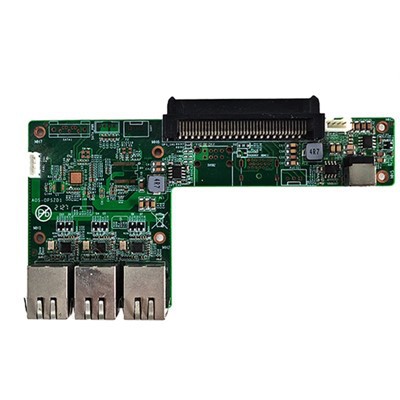
Hey there! As a supplier of RK3288 Android OPS Computers, I often get asked about how to calibrate the touch screen on these devices. In this blog post, I'll walk you through the process step by step.
First off, let's understand why touch screen calibration is important. Over time, the touch screen on your RK3288 Android OPS Computer might start to misinterpret your touches. You might tap on one spot, but the screen registers it somewhere else. This can be super frustrating, especially if you rely on the touch screen for day - to - day operations. Calibrating the touch screen ensures that it accurately detects your touches, giving you a smooth and seamless user experience.
Prerequisites
Before you start the calibration process, there are a few things you need to have in place. Make sure your RK3288 Android OPS Computer is turned on and running the Android operating system. It's also a good idea to have a clean and dry touch screen. Any dirt or moisture on the screen can interfere with the calibration process.
Step 1: Access the Calibration Menu
The first step is to find the calibration option in the settings of your RK3288 Android OPS Computer. Usually, you can do this by going to the "Settings" app on your device. Once you're in the settings, look for an option related to "Display" or "Touch Screen". In some Android versions, it might be under a sub - menu like "System" or "Device Preferences".
If you're having trouble finding the calibration option, you can try using the search function in the settings. Just type in "touch screen calibration" and it should show up if it's available.
Step 2: Start the Calibration Process
Once you've located the calibration option, tap on it to start the process. When you start the calibration, the screen will display a series of dots or targets at different positions. Your job is to tap on these targets as accurately as possible.
The calibration software uses these taps to map the physical coordinates of your touches on the screen. The more accurately you tap the targets, the more precise the calibration will be. Some calibration processes might have multiple rounds of targets to ensure a high level of accuracy.
Step 3: Follow the On - screen Instructions
As you're tapping on the targets, pay close attention to the on - screen instructions. The calibration software might give you specific instructions on how to tap, like using a single finger or tapping gently. Make sure to follow these instructions carefully to get the best results.
If you make a mistake and tap the wrong target, don't worry. Most calibration software allows you to restart the process. Just look for an option like "Restart" or "Try Again" on the screen.
Step 4: Completing the Calibration
Once you've tapped on all the targets, the calibration software will analyze your taps and adjust the touch screen settings accordingly. After a short period, the calibration process will be complete. You'll usually get a confirmation message on the screen indicating that the calibration was successful.
To test if the calibration worked, try tapping on different areas of the screen. Open some apps and see if your taps are registered accurately. If you still notice some issues, you might need to repeat the calibration process.


Troubleshooting
Sometimes, the calibration process might not go as smoothly as expected. Here are some common issues and how to fix them:
- Unresponsive Screen: If the screen is unresponsive during the calibration process, make sure the device is not in a low - power mode. You can also try restarting the device and then starting the calibration again.
- Inaccurate Calibration: If the calibration seems inaccurate even after multiple attempts, there could be a hardware issue. In this case, it's a good idea to contact our support team.
Other Products We Offer
As a supplier of RK3288 Android OPS Computers, we also have a range of other great products. Check out our ARM Chip Industrial Iot Gateway Internet Of Things Gateway Computer Embedded Computer. It's a powerful device that's perfect for industrial IoT applications.
We also have the Intel 4 - 5 Generation CPU 3.5 - inch Industrial Motherboard, which offers high - performance computing for industrial use. And if you're looking for a compact yet powerful computer, our I3 6100U/I5 6200U/I7 6500U CPU MINI Computer 4GB DDR4 2133MHz Computer is a great option.
Contact Us for Purchasing
If you're interested in our RK3288 Android OPS Computers or any of our other products, we'd love to hear from you. Whether you're looking to make a small purchase for your business or a large - scale order, we're here to help. Reach out to us for more information and to start the purchasing process.
References
- Android Developer Documentation
- RK3288 Technical Manuals