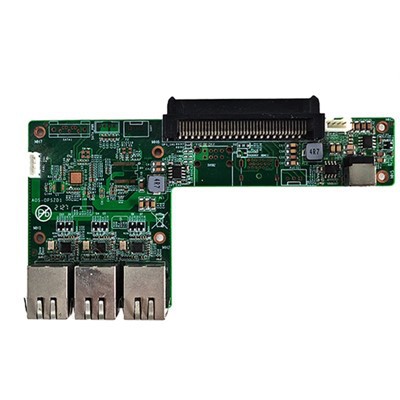
As a provider of Atom Z8350 Android Windows OPS computers, I understand the importance of optimizing software for this specific processor to ensure peak performance. The Atom Z8350, a quad - core processor, is often used in OPS (Open Pluggable Specification) computers due to its balance of power and efficiency. In this blog, I'll share some software optimization tips for an OPS computer running Windows with the Atom Z8350 processor.
1. System Updates
One of the first steps in software optimization is to keep your Windows operating system up - to - date. Microsoft regularly releases updates that not only fix security vulnerabilities but also improve system performance. These updates can include driver updates for the Atom Z8350, which can enhance the processor's compatibility and efficiency with the operating system.
To check for updates, go to the "Settings" app in Windows, then click on "Update & Security." Select "Check for updates" and install any available updates. This simple step can significantly improve the overall performance of your OPS computer.
2. Disk Cleanup
Over time, your computer's hard drive accumulates temporary files, system caches, and other unnecessary data. These files can take up valuable disk space and slow down your system. Windows provides a built - in disk cleanup tool that can help you free up space.
To use the disk cleanup tool, search for "Disk Cleanup" in the Windows search bar. Select the drive you want to clean (usually the C: drive) and click "OK." Windows will then analyze the drive and show you a list of files that can be deleted. Check the boxes next to the types of files you want to remove, such as temporary files, recycle bin contents, and system update backups, and then click "OK" to start the cleanup process.
3. Uninstall Unnecessary Programs
Many computers come pre - installed with software that you may never use. These programs can consume system resources and slow down your computer. To uninstall unnecessary programs, go to the "Control Panel" in Windows, then click on "Programs and Features." Select the program you want to uninstall and click "Uninstall."
Be careful when uninstalling programs, as some may be required for the proper functioning of your computer. If you're not sure whether a program is necessary, do some research online or consult with a professional.
4. Optimize Startup Programs
When you start your computer, many programs automatically launch in the background. These programs can slow down the startup process and consume system resources. To optimize startup programs, press the Windows key + R to open the Run dialog box, then type "msconfig" and press Enter.
In the System Configuration window, click on the "Startup" tab. Here, you can see a list of programs that start automatically when your computer boots up. Uncheck the boxes next to the programs you don't want to start automatically, then click "OK" and restart your computer.
5. Adjust Visual Effects
Windows has a variety of visual effects, such as transparency, animations, and shadows, that can make your desktop look more attractive but also consume system resources. To adjust visual effects, right - click on the "This PC" icon on your desktop and select "Properties." In the System window, click on "Advanced system settings."
In the System Properties window, click on the "Advanced" tab, then click on the "Settings" button under "Performance." Here, you can choose to adjust visual effects for best performance by selecting the "Adjust for best performance" option. You can also customize the visual effects by selecting specific options to enable or disable.
6. Use Lightweight Software
When choosing software for your OPS computer, opt for lightweight applications that require fewer system resources. For example, instead of using a heavy - duty photo editing software, you can use a lightweight alternative like Paint.NET. Similarly, for web browsing, you can use browsers like Firefox or Chrome, which are known for their efficiency.
7. Manage Power Settings
Proper power management can also improve the performance of your Atom Z8350 OPS computer. By adjusting power settings, you can ensure that your computer uses power efficiently and doesn't waste energy on unnecessary processes.
To manage power settings, go to the "Control Panel" in Windows, then click on "Power Options." Here, you can choose a power plan that suits your needs. For example, if you're using your computer for light tasks, you can select the "Power saver" plan, which reduces power consumption by lowering the screen brightness and CPU performance. If you need more performance, you can select the "High performance" plan.


8. Update Graphics Drivers
The graphics drivers for your Atom Z8350 OPS computer can have a significant impact on its performance, especially if you're using the computer for tasks such as gaming or video editing. To update your graphics drivers, go to the manufacturer's website (usually Intel for the Atom Z8350) and download the latest drivers for your specific model.
Install the drivers and restart your computer. Updated graphics drivers can improve the visual quality of your display and enhance the performance of graphics - intensive applications.
9. Use Antivirus Software Wisely
Antivirus software is essential for protecting your computer from malware and other security threats. However, some antivirus programs can be resource - intensive and slow down your computer. To use antivirus software wisely, choose a lightweight and efficient antivirus program.
Configure the antivirus software to perform scans during off - peak hours, such as when you're not using your computer. This way, the scans won't interfere with your normal computer usage.
10. Consider Third - Party Optimization Tools
There are many third - party optimization tools available that can help you optimize your OPS computer running Windows. These tools can perform tasks such as disk defragmentation, registry cleaning, and system monitoring.
However, be careful when using third - party tools, as some may contain malware or cause other issues. Only download tools from reputable sources and read reviews before using them.
In conclusion, optimizing the software for an OPS computer with the Atom Z8350 processor running Windows can significantly improve its performance. By following these tips, you can ensure that your computer runs smoothly and efficiently.
If you're interested in our ARM Chip Industrial Iot Gateway Internet Of Things Gateway Computer Embedded Computer, Intel 12th Gen OPS computer, or Rockchip OPS, or if you have any questions about software optimization for our Atom Z8350 OPS computers, please feel free to contact us for a procurement discussion.
References
- Microsoft. (n.d.). Windows Update. Retrieved from official Microsoft website.
- Intel. (n.d.). Atom Z8350 product specifications. Retrieved from Intel official website.